
Define Roles and Permissions with RBAC
For the complete documentation index, see llms.txt. For a full content snapshot, see llms-full.txt. Append.mdto anykestra.io/docs/*URL for plain Markdown.
Kestra Enterprise supports Role-Based Access Control (RBAC) to manage access to tenants, namespaces, flows, and resources.
Kestra has three types of entities:
-
Users: Represent a person. To add users to your Kestra instance, you can do one of the following:
- Invite users to your instance or tenant from the UI
- Sync users from an external identity provider using SCIM
- Create users directly using Terraform
- Automate user onboarding, offboarding, and group management from inside a flow using IAM tasks
-
Groups: Represent a collection of Users and Service Accounts. Groups are a useful mechanism for providing the same roles to multiple users or service accounts at once by binding a role to a group.
-
Service Accounts: Represent an application. They are treated as users when binding role assignments.
All these entities can be assigned to a role, which defines what resources the user, group, or service account can access. These entities do not belong to namespaces, but their permissions can be limited to specific namespaces via bindings on the IAM page.
The image below shows the relationship between Users, Groups, Service Accounts, Roles, and Bindings:
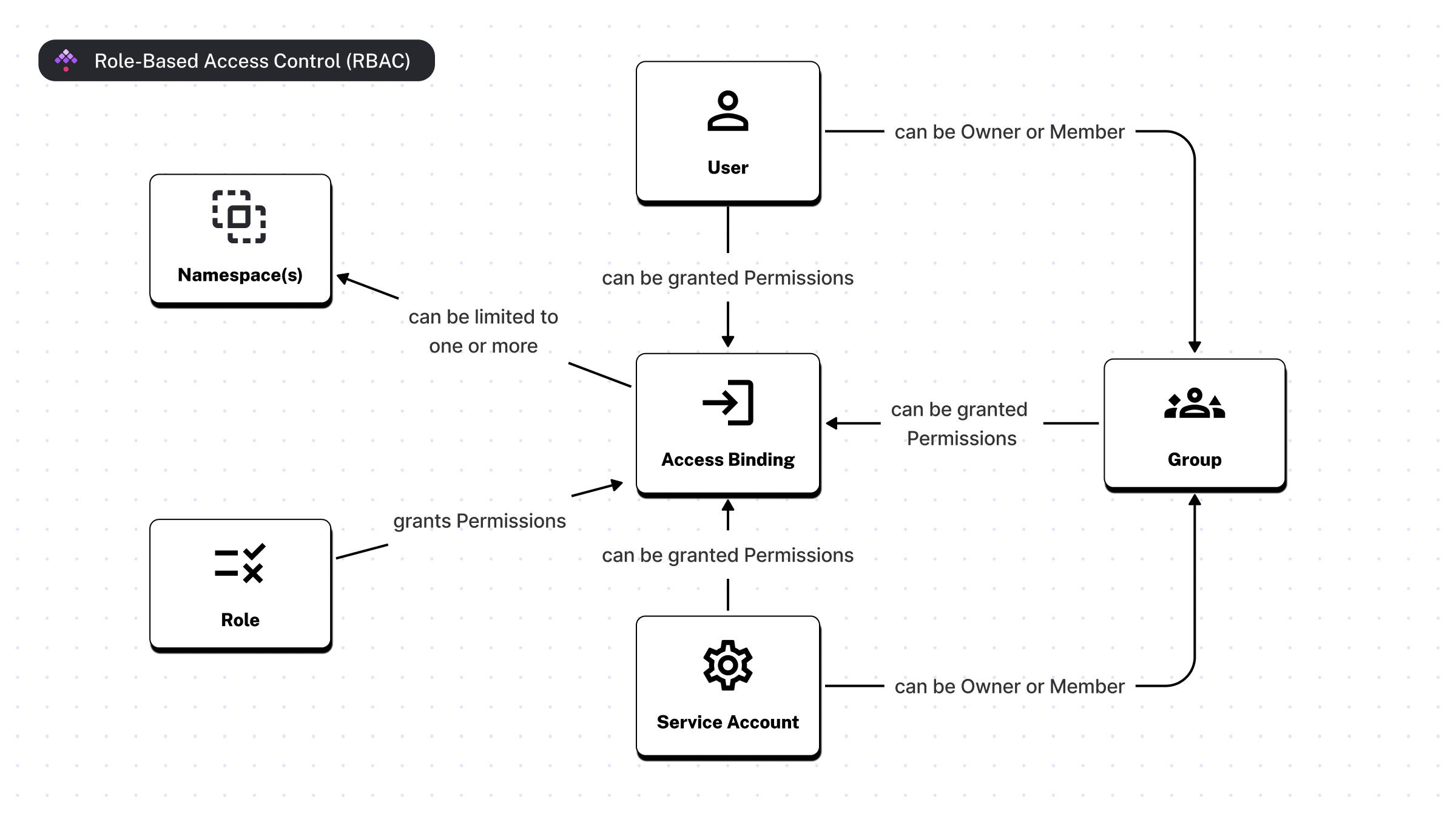
Roles and Bindings
A role is a collection of permissions that can be assigned to users, service accounts, or groups. Each permission is a combination of a resource (e.g., FLOW, EXECUTION, SECRET) and one or more actions (e.g., EXECUTE, VIEW, DELETE). A role alone grants nothing — it must be attached to a user, service account, or group via a binding on the IAM page.
Users, service accounts, and groups can hold any number of roles simultaneously. Bindings can be scoped to one or more namespaces — scoped access automatically extends to all child namespaces (for example, binding to prod also grants access to prod.engineering). You can configure a default role to assign it automatically to new users joining via SSO. Use Impersonate to verify a user’s effective permissions after assigning roles.
Impersonate
After assigning permissions to a user, Instance Owners can impersonate users to verify their access is correct. Impersonation switches your view to that user’s perspective and can be closed back to the Instance Owner view at any time.
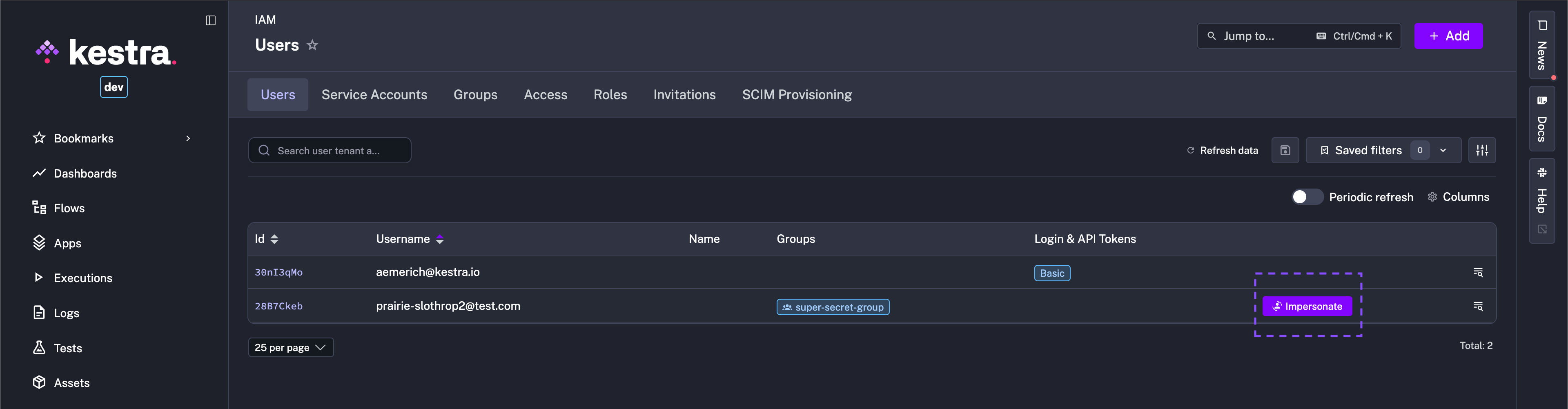
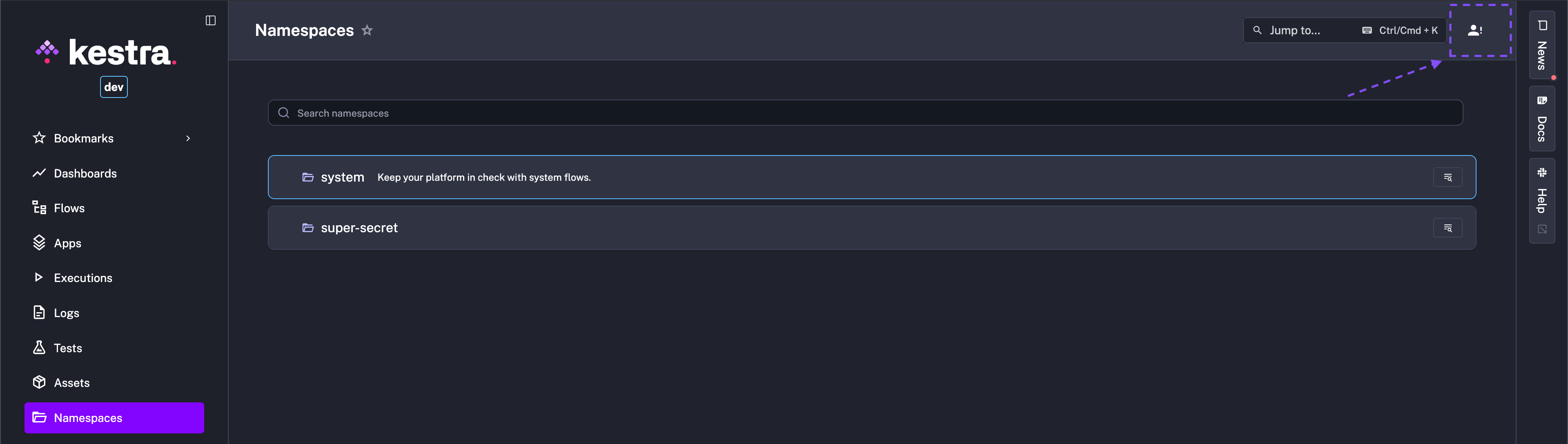
Resources
A resource is a category of product entity or capability that can be controlled through RBAC. Each resource has its own set of allowed actions.
Core resources (namespace-scoped — bindings can restrict access to specific namespaces):
| Resource | Description |
|---|---|
FLOW | Flows, their revisions, graphs, and dependencies |
EXECUTION | Executions, their state, logs, outputs, and files |
TRIGGER | Triggers attached to flows |
NAMESPACE | Namespaces and their files |
KVSTORE | Key-value store entries |
SECRET | Secrets stored in the namespace |
CREDENTIAL | Credentials for external integrations (namespace-level and tenant-level) |
Apps and features (tenant-scoped):
| Resource | Description |
|---|---|
DASHBOARD | Custom dashboards |
BLUEPRINT | Custom blueprints |
APP | Apps and their executions |
TESTSUITE | Unit tests |
ASSET | Data assets and lineage |
MCP_SERVER | MCP servers exposing flows as AI tools |
COPILOT | AI Copilot flow generation |
Administration (tenant-scoped):
| Resource | Description |
|---|---|
USER | Users in the tenant |
GROUP | Groups and their members |
ROLE | RBAC roles |
BINDING | Role-to-entity bindings |
SERVICE_ACCOUNT | Service accounts |
INVITATION | User invitations |
AUDITLOG | Audit log entries |
POLICY | Governance policies controlling flow and task behavior (namespace-scope and tenant-scope) |
SYSTEM_SETTINGS | Instance-level settings |
TENANT_SETTINGS | Tenant-level settings |
Actions
Each resource defines its own set of allowed actions. Not every action applies to every resource.
Common actions (available on most resources):
| Action | Meaning |
|---|---|
VIEW | Read a single item’s details |
LIST | Search or browse items |
CREATE | Create a new item |
UPDATE | Modify an existing item |
DELETE | Remove an item |
Resource-specific actions:
| Resource | Additional actions |
|---|---|
FLOW | EXECUTE (trigger an execution), DISABLE, ENABLE, VALIDATE, EXPORT, IMPORT |
EXECUTION | RESTART, KILL, REPLAY, PAUSE, RESUME, CHANGE_LABELS, ACCESS_LOGS, ACCESS_OUTPUTS, ACCESS_FILES, FOLLOW (live SSE stream), EXPORT, UNQUEUE, FORCE_RUN |
TRIGGER | UNLOCK, RESTART, DISABLE, ENABLE, EXPORT, BACKFILL |
NAMESPACE | MANAGE_FILES (all namespace file operations) |
POLICY | EXECUTE (dry-run evaluate a policy against its scope), EXPORT, IMPORT |
APP | EXECUTE, ACCESS_FILES, ACCESS_LOGS |
TESTSUITE | EXECUTE |
AUDITLOG | EXPORT |
USER | MANAGE_GROUP_MEMBERSHIP, IMPERSONATE |
GROUP | MANAGE_MEMBERS |
COPILOT | USE (only action) |
SYSTEM_SETTINGS | — (VIEW and UPDATE only; no CREATE, DELETE, or LIST) |
TENANT_SETTINGS | — (VIEW and UPDATE only; no CREATE, DELETE, or LIST) |
For a complete resource-to-endpoint mapping, see the Permissions reference.
If you are upgrading from Kestra 1.x, see the RBAC action model migration guide for how old CRUD permissions map to the new actions and what was dropped.
MCP server permissions
MCP_SERVER is a first-class RBAC resource that controls access to Kestra MCP servers. Supported actions are VIEW, LIST, CREATE, UPDATE, and DELETE.
Default role assignments:
| Role | Actions granted |
|---|---|
| Admin | All (VIEW, LIST, CREATE, UPDATE, DELETE) |
| Developer / Editor | All (VIEW, LIST, CREATE, UPDATE, DELETE) |
| Launcher | — (not included) |
| Viewer | VIEW, LIST |
In addition to these permissions, access to a private MCP server is also flow-scoped: a user can connect to a private server only if they have FLOW: EXECUTE on at least one namespace that contains a flow with an McpToolTrigger pointing at that server.
Managed roles
Kestra ships five managed roles. Each role’s full permission set is visible under IAM → Roles. Instance Owners can create additional custom roles on top of these. Users can hold multiple roles.
| Role | Description |
|---|---|
| Admin | All actions on all resources. |
| Developer | Everything Editor has, plus: full namespace management (including file management and plugin default import), secrets, credentials, and full blueprint CRUD. For engineers who also need platform-level access. |
| Editor | Full flow and execution management (create, update, delete, execute, restart, kill, etc.), triggers, KV, dashboards, apps, test suites, assets, MCP servers, settings, and Copilot. No namespace file management, no secrets or credentials, blueprint read-only. No IAM resources. |
| Launcher | Execute flows and monitor executions (EXECUTE, REPLAY, RESTART, CHANGE_LABELS, ACCESS_LOGS, ACCESS_OUTPUTS, ACCESS_FILES, FOLLOW, EXPORT). Read-only on triggers, KV, dashboards, and assets. No flow write access, no namespace management. |
| Viewer | VIEW, LIST, and EXPORT on flows, executions, triggers, and namespaces. Can access execution logs, outputs, files, and live-follow executions. No execution state changes (no restart, kill, replay, etc.). No write access anywhere. |
Instance Owner and Admin
Kestra provides two roles for managing your instance: Instance Owner and Admin.
- Instance Owner is a user type with elevated privileges for global control.
- Admin is a customizable role that grants full access to all resources (scoped to a tenant if multi-tenancy is enabled).
Summary
Key differences between Admin and Instance Owner:
| Feature | Admin (scoped to a tenant if enabled) | Instance Owner |
|---|---|---|
| Access Level | By default as all permissions, depends on the Role | Manages tenants and IAM across all tenants |
| Tenant Management | No | View, create, update, delete tenants across all tenants |
| User/Role/Group/Bindings Management | Has the permission by default | View, create, update, delete across all tenants |
| Flow/Execution Management | Has the permission by default | No |
| Set Instance Owner privilege | No | Yes |
Instance Owner
Instance Owner is a powerful user type with instance-wide privileges. Use it sparingly — only for tasks that require it, such as creating tenants, troubleshooting, or helping a user.
Unlike tenant-scoped roles, Instance Owner operates across all tenants and does not require any Role or Binding. Instance Owners access instance-wide controls through the Instance Owner console, which covers tenant management, instance IAM, infrastructure, and governance.
For how to create Instance Owner users and manage the privilege, see Instance Owner.
Admin
Kestra has no Admin user type; Admin is a role with full permissions.
This role can be assigned to any user, service account, or group. This allows you to have different types of admins, grant admin permissions to a whole group, and revoke those permissions at any time without deleting any group or user.
When using multi-tenancy, Kestra assigns the Admin role to the user who created the tenant by default.
If you see an error when creating a new User or Service Account, it might be caused by a limit on your license. In that case, reach out to us to validate and optionally upgrade your license.
Creating a user with an Admin role
Through the UI
When launching Kestra for the first time with no prior CLI setup, you are prompted to set up Kestra through the Setup Page.
This creates the first user, automatically assigns the Admin role, and binds it.
Later, create a new user or select an existing user and assign the Admin role from the Access tab in IAM.
Through the CLI
To create a user with the Admin role from the CLI, use the --admin option:
kestra auths users create prod.admin@kestra.io TopSecret42 --admin
## schema:kestra auths users create <username> <password> --admin
User lockout
Use the following configuration to change the lockout behavior after too many failed login attempts. By default, Kestra locks the user for the lock-duration period after a threshold number of failed attempts within the monitoring-window duration. The snippet below lists the default values — adjust them based on your preferences:
kestra: security: login: failed-attempts: threshold: 10 monitoring-window: PT5M lock-duration: PT30MThe key attributes are:
threshold: Sets the number of allowed failed attempts before a user is locked out.monitoring-window: Defines the period during which failed login attempts are counted before triggering a lock.lock-duration: Defines how long the account remains locked.
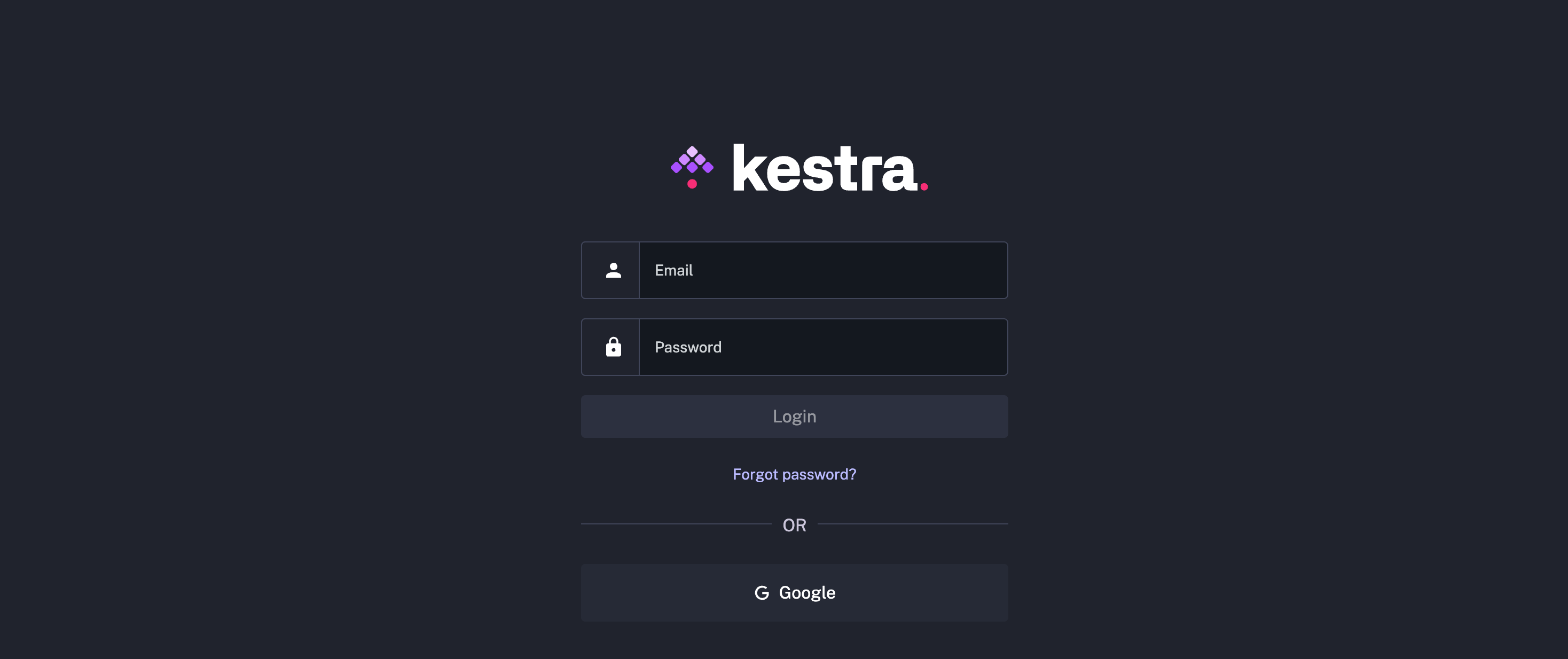
With the configuration above, a user gets 10 failed login attempts in a 5-minute window before lockout. They must wait 30 minutes, be unlocked by an Admin, or reset their password using the Forgot Password link. An Instance Owner can also unlock a user manually from the user’s detail page.
Change password
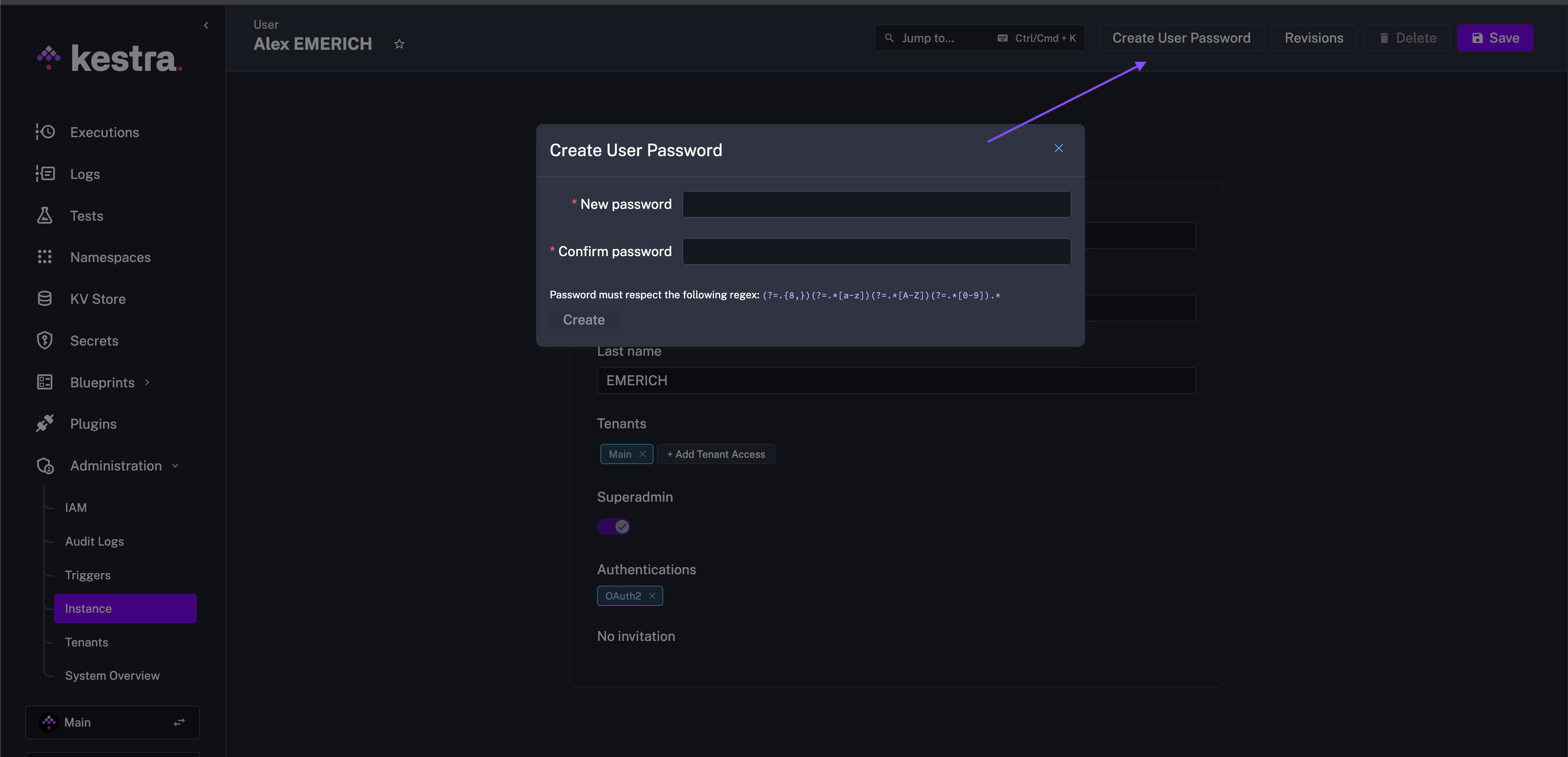
Users can change their password from their profile, accessible via the user avatar in the bottom-left corner of the UI. “Forgot Password” settings can be configured in your Kestra configuration under basic-auth.password-reset. Settings to consider are the cooldown time between reset requests and how many requests can be made in a given time window.
kestra: security: basic-auth: password-reset: cooldown: PT5M # Minimum time required between two password reset emails for the same user rate-limit: max-requests: 10 # Maximum number of password reset requests allowed per client within the time window window: PT1H # Time window during which password reset requests are counted for rate limitingReset a password as an Instance Owner
Users can reset their password via the Forgot Password link on the login page. An Instance Owner can also reset a user’s password from the User Edit page at Instance Owner → Instance IAM → Users.
RBAC FAQ
Why is Admin a Role rather than User type?
The Admin role is a collection of permissions that can be assigned to users, service accounts, or groups. This lets you grant admin permissions to multiple users or groups, and revoke them at any time without deleting anything.
A user can start as Admin and later have that permission narrowed or removed. Multiple users can share the Admin role, or the same user can hold multiple roles with different scopes.
Users represent authentication (who you are); roles represent authorization (what you can do). Decoupling the two lets you grant permissions to multiple users or groups at once by attaching a single role to a group.
Why can't I edit an existing Binding?
A binding is immutable. If a binding no longer reflects the desired permissions, delete it and create a new one for the same user, service account, or group with different roles and/or namespaces. This prevents accidental changes to existing permissions.
What happens if you delete a Group?
All users and service accounts in that group lose the permissions granted by bindings attached to it. The users and service accounts themselves still exist.
Was this page helpful?