
Control How Many Flow Executions Run in Parallel
For the complete documentation index, see llms.txt. For a full content snapshot, see llms-full.txt. Append.mdto anykestra.io/docs/*URL for plain Markdown.
Concurrency limits control how many executions can run at the same time — at the flow, namespace, or tenant level. When a limit is reached, new executions are queued, cancelled, or failed depending on the configured behavior.
Once an execution occupies a concurrency slot, it keeps that slot until it reaches a terminal state. This includes executions in the PAUSED state while they wait for manual approval. For example, with concurrency.limit set to 1, a flow paused by a Pause task blocks all subsequent executions until the paused execution is resumed, killed, or otherwise reaches a terminal state. Resuming the execution continues to use its existing slot, so it cannot exceed the configured limit.
Concurrency limits executions, not the number of tasks a worker runs. Task processing is governed by worker thread pools and task runners. Concurrency uses database locks to hold slots, so heavy contention (many executions competing for the same lock) can increase database load and slow scheduling.
When to use concurrency
Use concurrency when you need to:
- Protect a shared target system (databases, SaaS APIs, warehouses) from overload.
- Enforce sequential processing for stateful workloads (one ETL load at a time).
- Keep a small, fixed number of parallel executions within an external rate limit.
Do not use concurrency to:
- Throttle worker CPU or memory usage — tune worker thread pools or task runners instead.
- Replace task-level limits — use task runner settings and retry backoff for per-task control.
- Cap how many executions are created over time — use Quotas (Enterprise Edition) for time-window rate limits.
Configuring concurrency
Flow level
Set concurrency.limit on a flow to cap its parallel executions:
id: concurrency_examplenamespace: company.team
concurrency:  limit: 2
tasks:  - id: wait    type: io.kestra.plugin.scripts.shell.Commands    taskRunner:      type: io.kestra.plugin.core.runner.Process    commands:      - sleep 10
With limit: 2, a third execution waits until one of the two running executions completes.
Namespace level
Set a concurrency limit on a namespace to cap the total simultaneous executions across all flows within that namespace and its children.
Navigate to Namespaces, open the target namespace, click Edit, and scroll to the Concurrency section. Set the Limit and choose a Behavior (Queue, Cancel, or Fail).
A namespace concurrency limit applies to every flow whose namespace matches or is a child of the configured namespace. For example, a limit on company applies to flows in company, company.team, and company.team.project.
Tenant level
Set a concurrency limit at the tenant level to cap total simultaneous executions across all namespaces in the tenant.
In Instance Owner, click Concurrency Limits in the sidebar, then Administer on the target tenant.
behavior property
By default, executions that exceed the limit are queued. Set behavior to control what happens instead:
QUEUE— hold the execution until a slot opens (default).CANCEL— immediately mark the execution asCANCELLED.FAIL— immediately mark the execution asFAILED.
If you expect execution spikes, combine a conservative limit with backoff at the source (e.g., slower trigger rates) to avoid large queues that increase database lock contention.
id: concurrency_limited_flownamespace: company.team
concurrency:  behavior: FAIL # QUEUE, CANCEL, or FAIL  limit: 2
tasks:  - id: wait    type: io.kestra.plugin.scripts.shell.Commands    taskRunner:      type: io.kestra.plugin.core.runner.Process    commands:      - sleep 10
When an execution starts from a Trigger, the trigger locks until it finishes, preventing multiple executions from that trigger from running concurrently. The behavior property does not apply in this case — no new executions start while the trigger is locked.
Read more in the Locked Triggers section.
Evaluation order
Kestra evaluates concurrency limits from the most specific scope to the most general:
- Flow-level concurrency is checked first.
- Namespace-level concurrency is checked next, starting from the flow’s own namespace and moving up through each parent namespace to the root.
- Tenant-level concurrency is checked last.
The first limit reached defines the behavior for that execution. When a more specific limit is reached, no slot is consumed at higher levels.
For example, if a flow defines limit: 5 with QUEUE and its parent namespace defines limit: 10 with FAIL, a sixth execution of that flow is queued (flow-level limit is reached first). If the flow has no limit of its own but the parent namespace is at its limit of 10, the execution fails.
Monitoring concurrency
Per-flow Concurrency tab
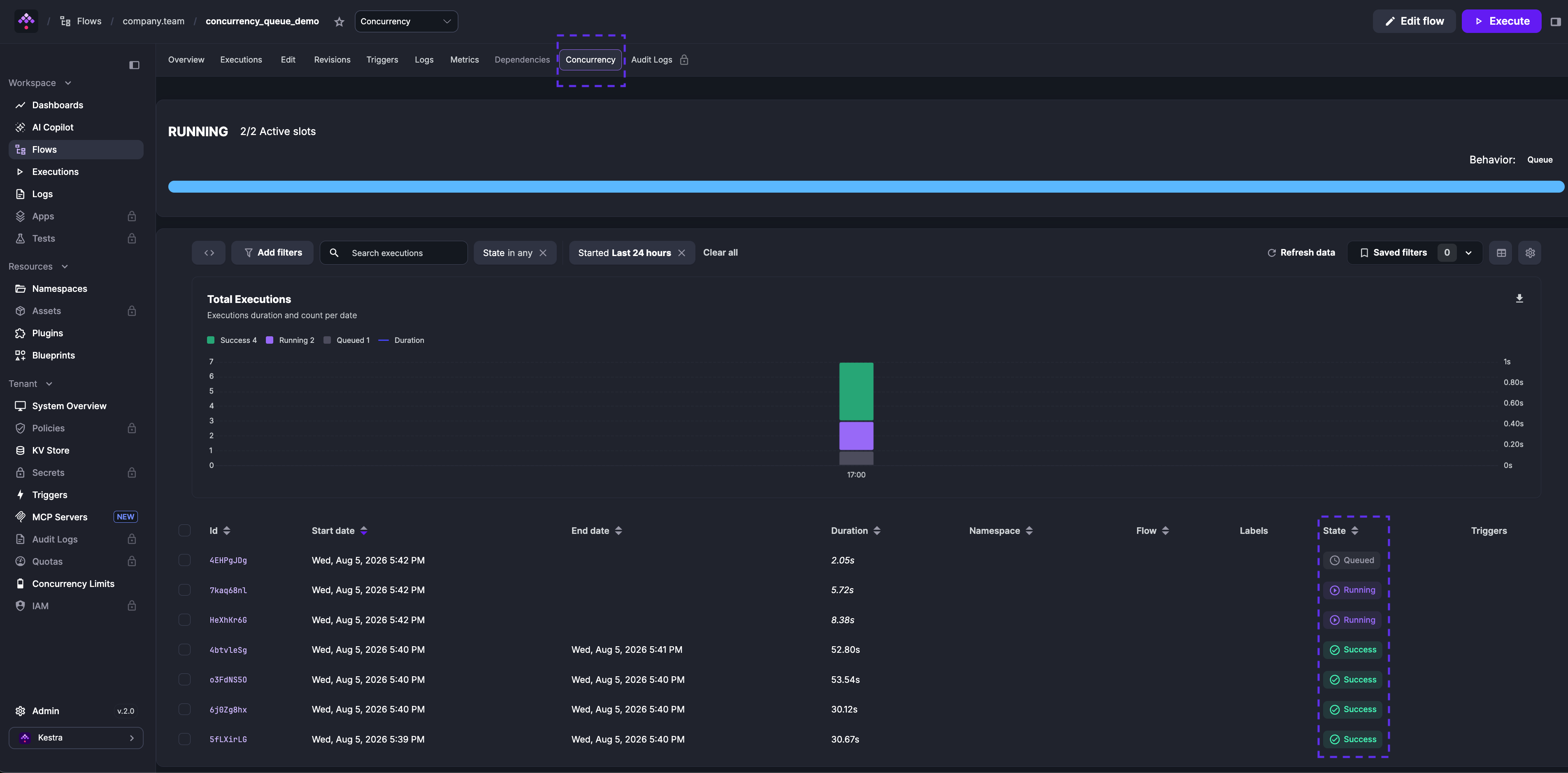
The Concurrency tab on a Flow page shows current slot usage, the configured behavior, and a list of running and queued executions for that flow.
Concurrency Limits page
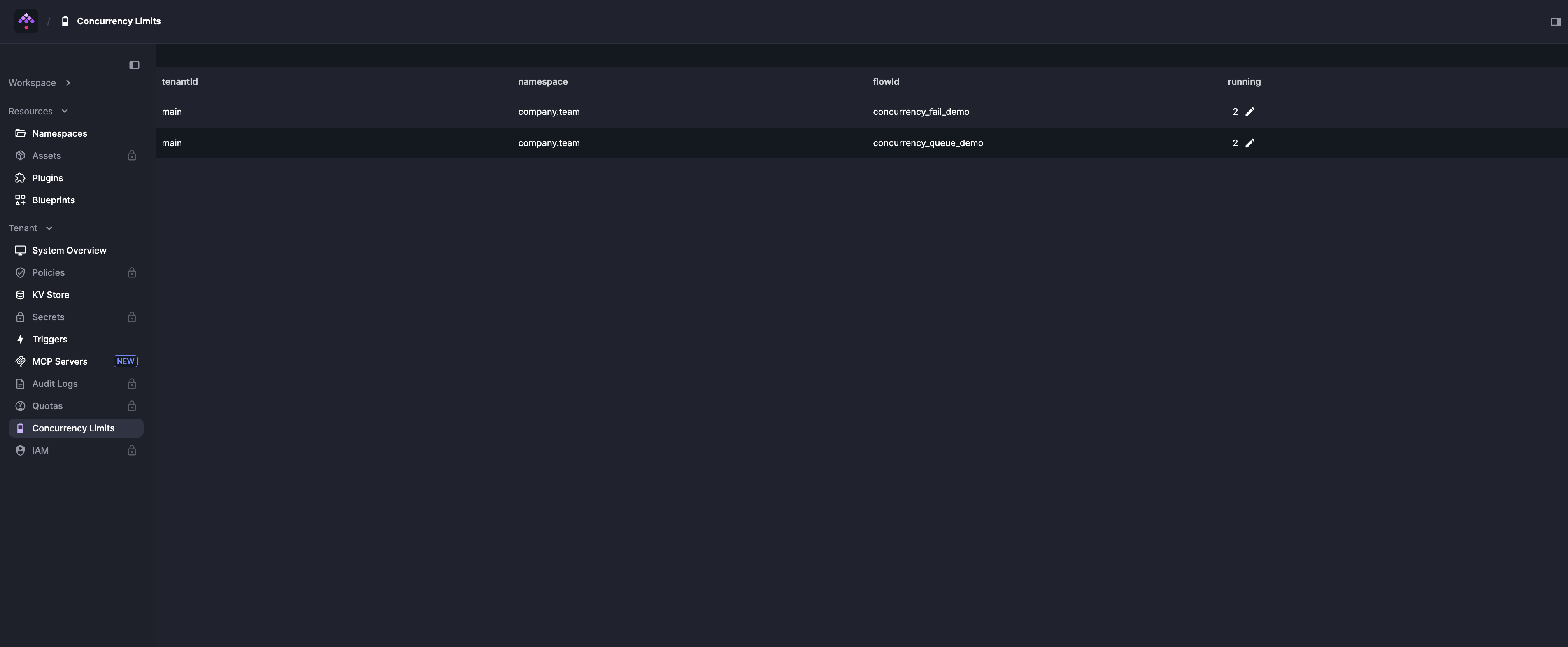
The Concurrency Limits page under Tenant in the sidebar lists every flow, namespace, and tenant concurrency limit configured, along with its live running count. Use it for a tenant-wide view of concurrency usage across all scopes.
Concurrent trigger executions
Any Trigger type supports concurrent executions through the allowConcurrent property. By default, allowConcurrent: false — if a trigger fires while a previous execution is still running, the new execution is skipped.
id: sleep_concurrentnamespace: company.teamtasks: - id: sleep type: io.kestra.plugin.core.flow.Sleep duration: PT60Striggers: - id: schedule type: io.kestra.plugin.core.trigger.Schedule cron: "* * * * * *" withSeconds: true allowConcurrent: falseSet allowConcurrent: true to allow multiple executions to run simultaneously from the same trigger.
Troubleshooting concurrency issues
Check the Concurrency tab
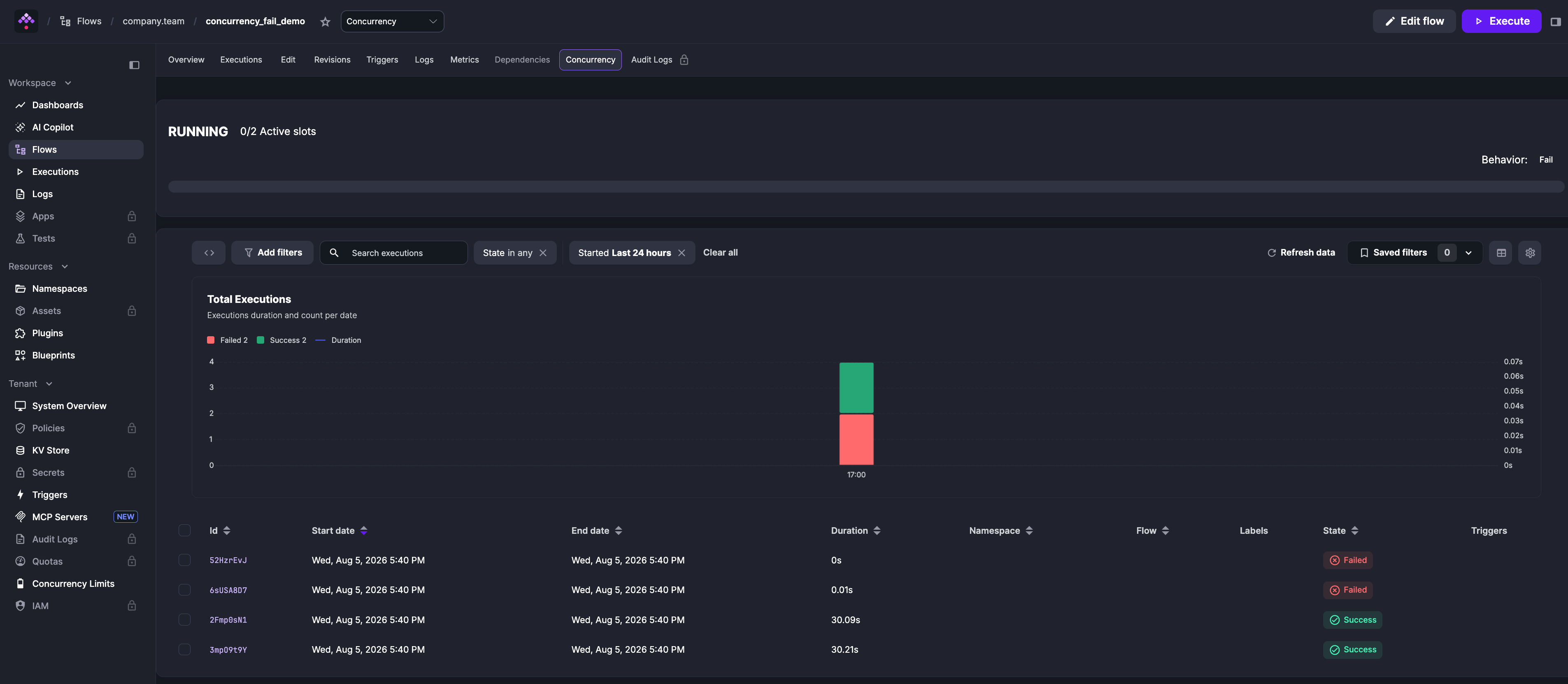
Open the Concurrency tab on the Flow page to see which executions are running, queued, or failed. This shows which executions hold slots and which are waiting.
Edit the concurrency limit
You can change or remove the concurrency property in the flow editor and save. The executor always reads the latest flow revision, so the updated limit takes effect immediately for all in-progress executions.
Reset a stuck running counter
If executions were deleted while running, their concurrency slots can remain occupied indefinitely. Use the Concurrency Limits page to correct this: click the edit icon next to the affected flow and adjust the running counter directly.
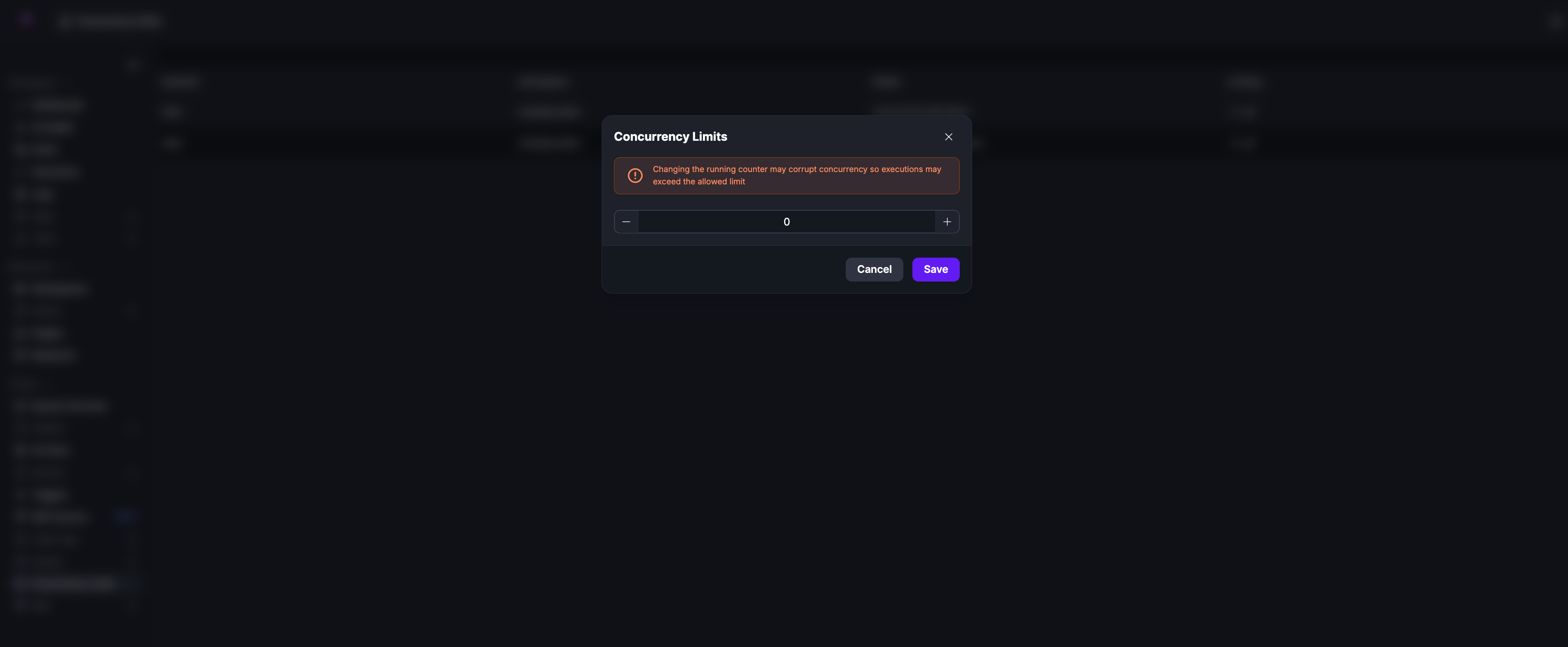
Do not delete executions to free stuck slots — deleted executions still hold concurrency slots. Instead, select stuck executions and click Kill to cancel them and release their slots. Use the counter reset only when slots remain stuck after killing all relevant executions.
Was this page helpful?