
Set Up Keycloak SCIM Provisioning for Identity Sync
For the complete documentation index, see llms.txt. For a full content snapshot, see llms-full.txt. Append.mdto anykestra.io/docs/*URL for plain Markdown.
Sync users and groups from Keycloak to Kestra using SCIM.
Prerequisites
- Keycloak Account: An account with administrative privileges is required to configure SCIM provisioning.
- Enable multi-tenancy in Kestra: Tenants must be enabled in Kestra to support SCIM provisioning. You can enable tenants by setting the
kestra.ee.tenants.enabledconfiguration property totrue:
kestra: ee: tenants: enabled: trueTenants are enabled by default. Please refer to the Migration Guide to assist with upgrading.
Kestra SCIM setup: create a new provisioning integration
- Go to Instance Owner, select your tenant from the sidebar, open IAM, and click the SCIM Provisioning tab.
- Click + Create.
- Fill in the following fields:
- Name: Enter a name for the provisioning integration.
- Description: Provide a brief description of the integration.
- Provisioning Type: Only SCIM 2.0 is supported — leave the default selection and click Save.
These steps generate a SCIM endpoint URL and a Secret Token. Save both — you will need them in the next steps.
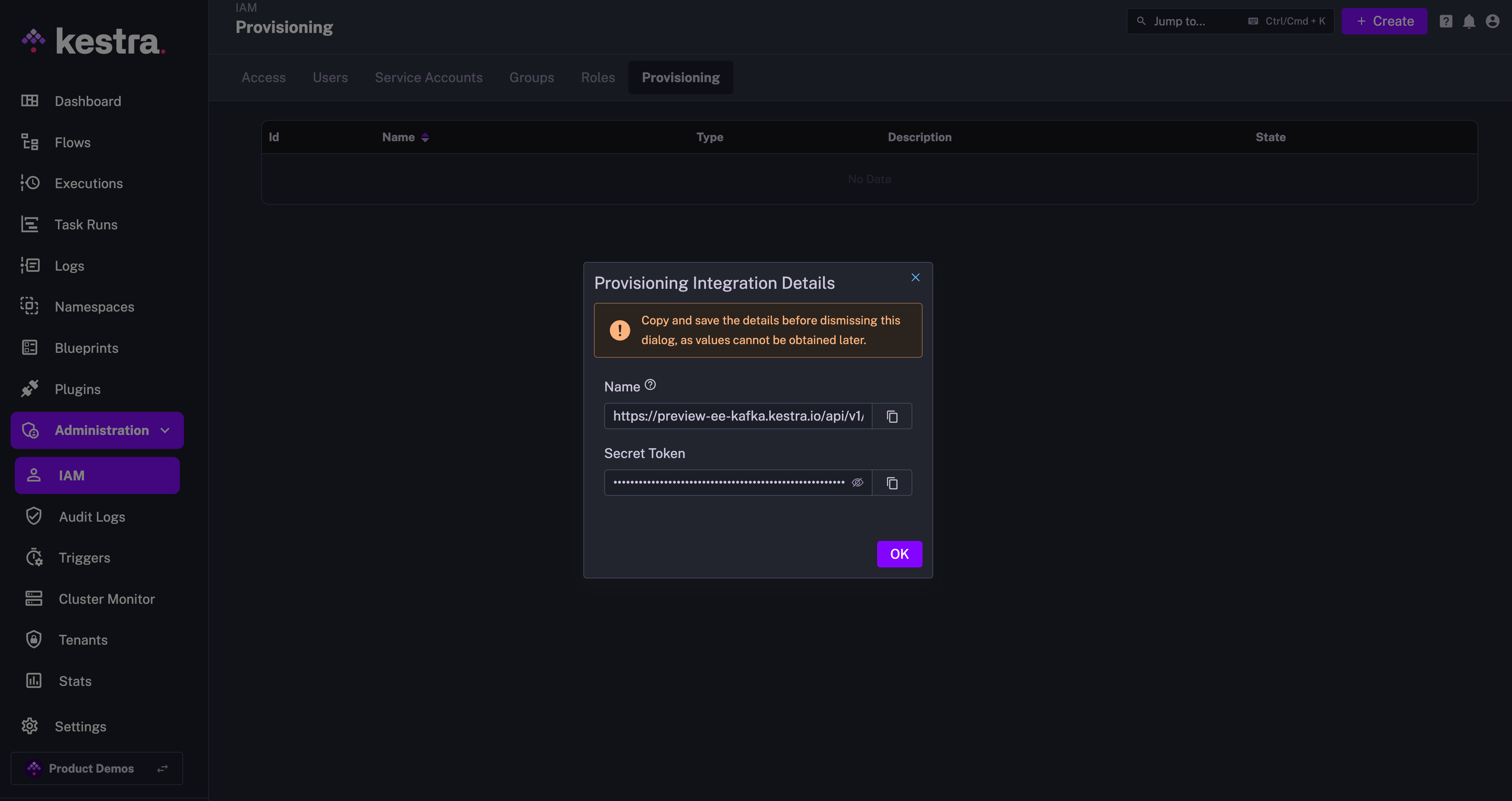
The endpoint should look as follows:
https://<your_kestra_host>/api/v1/<your_tenant>/integrations/integration_id/scim/v2The Secret Token is a long string (approx. 200 characters) used to authenticate requests from Keycloak to Kestra.
Enable or disable SCIM integration
You can disable or remove the SCIM integration at any time. When disabled, all incoming requests to that endpoint are rejected.
You can disable the integration while configuring Keycloak, then enable it once setup is complete.
IAM role and service account
When creating a new Provisioning Integration, Kestra will automatically create two additional objects:
-
Role
SCIMProvisionerwith the following permissions:GROUPS:CREATE,READUPDATE,DELETEUSERS:CREATE,READ,UPDATEBINDINGS:CREATE,READ,UPDATE,DELETE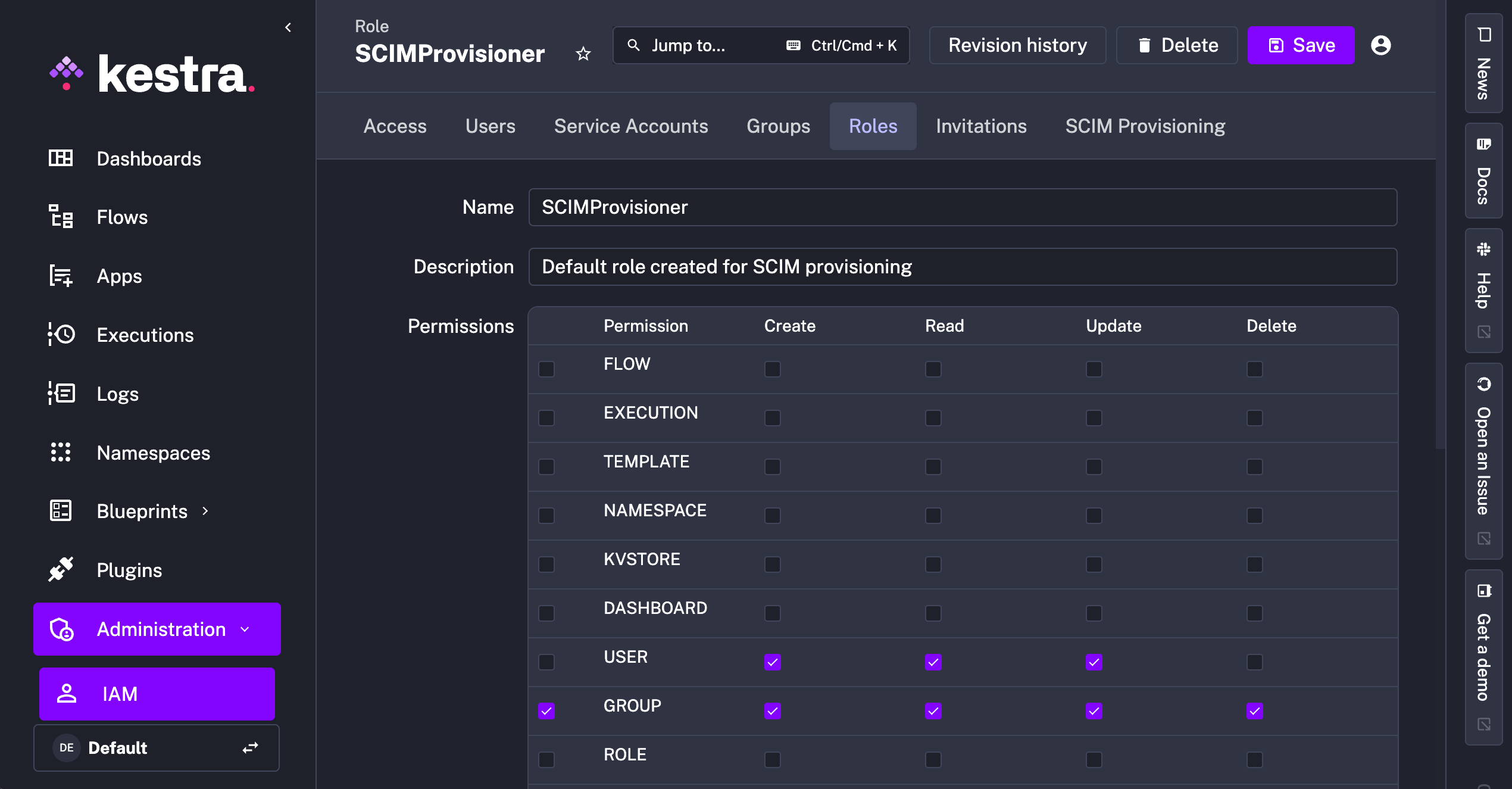
-
Service Account with an API Token which was previously displayed as the Secret Token for the integration:
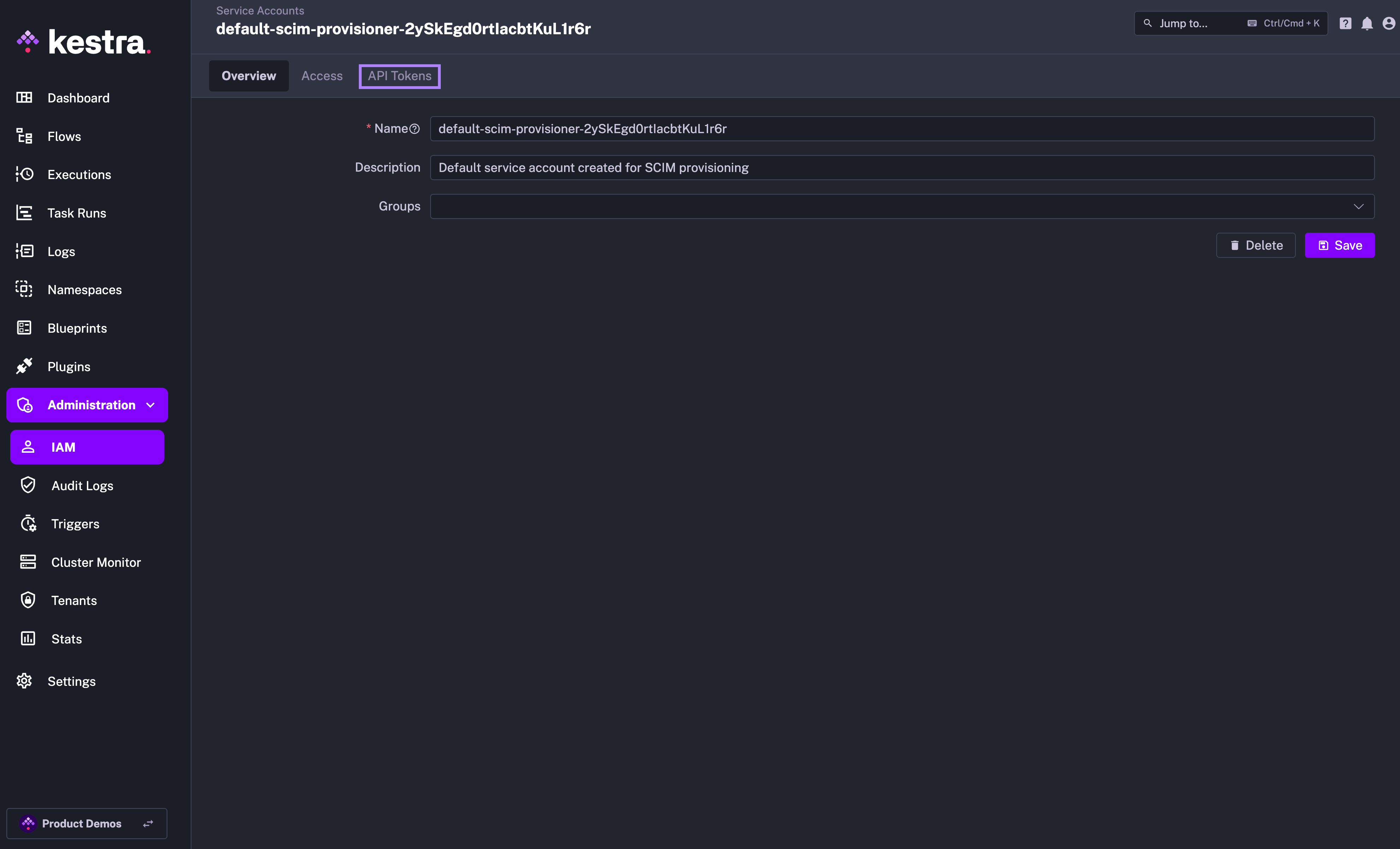
Why the SCIMProvisioner role doesn’t have the DELETE permission for USERS? This is because you cannot delete a user using our SCIM implementation. Users are global and SCIM provisioning is per tenant. When we receive a DELETE query for a user, we remove their tenant access but the user itself remains in the system.
Keycloak SCIM setup
Keycloak does not provide any built-in support for SCIM v2.0. Some open-source solutions support groups synchronization but not users and membership synchronization.
However, there are paid solutions such as SCIM for Keycloak that allow you to extend Keycloak with SCIM. The setup shown below was validated with Kestra 0.18.0 and Keycloak 25.0.2 — best if you use the same or higher versions.
- Create an account at https://scim-for-keycloak.de/ and purchase a free license (no VAT number or credit card required).
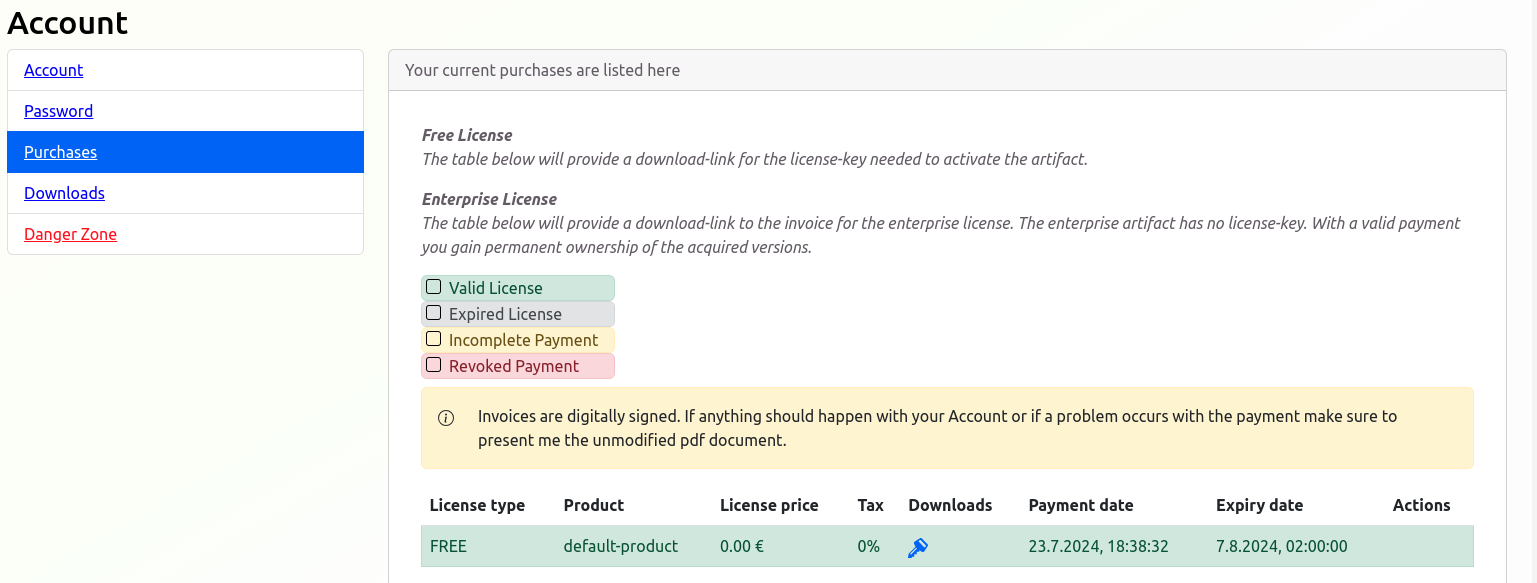
- Download the plugin JAR file from the Downloads section (e.g.
scim-for-keycloak-kc-25-2.2.1-free.jar).
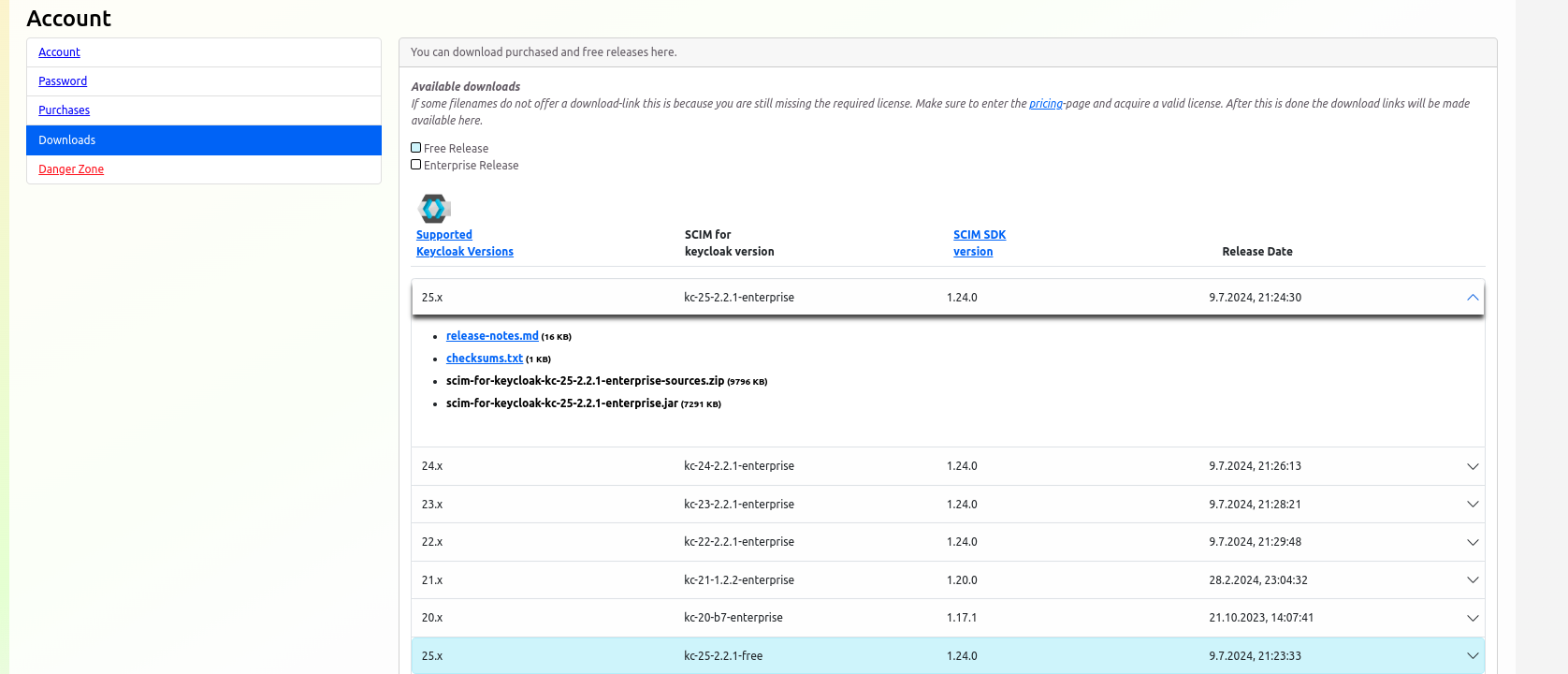
Place the JAR in the ./providers directory of your Keycloak installation. See SCIM for Keycloak Installation for details.
- Deploy Keycloak:
- Create a simple
docker-compose.yamlfile:
services:keycloak:container_name: keycloakimage: quay.io/keycloak/keycloak:25.0.2ports:- 8085:8085environment:KEYCLOAK_ADMIN: adminKEYCLOAK_ADMIN_PASSWORD: adminKC_SPI_THEME_WELCOME_THEME: scimKC_SPI_REALM_RESTAPI_EXTENSION_SCIM_LICENSE_KEY: <LICENSES_KEY>command:["start-dev", "--http-port=8085"]volumes:- ./providers:/opt/keycloak/providersnetwork_mode: "host" # Optional: for accessing external Kestra- Run
docker compose upto start Keycloak.
- Create a simple
- Configure the SCIM for Keycloak:
- Connect to the
SCIM Administration Consoleto synchronize users and groups from Keycloak to Kestra.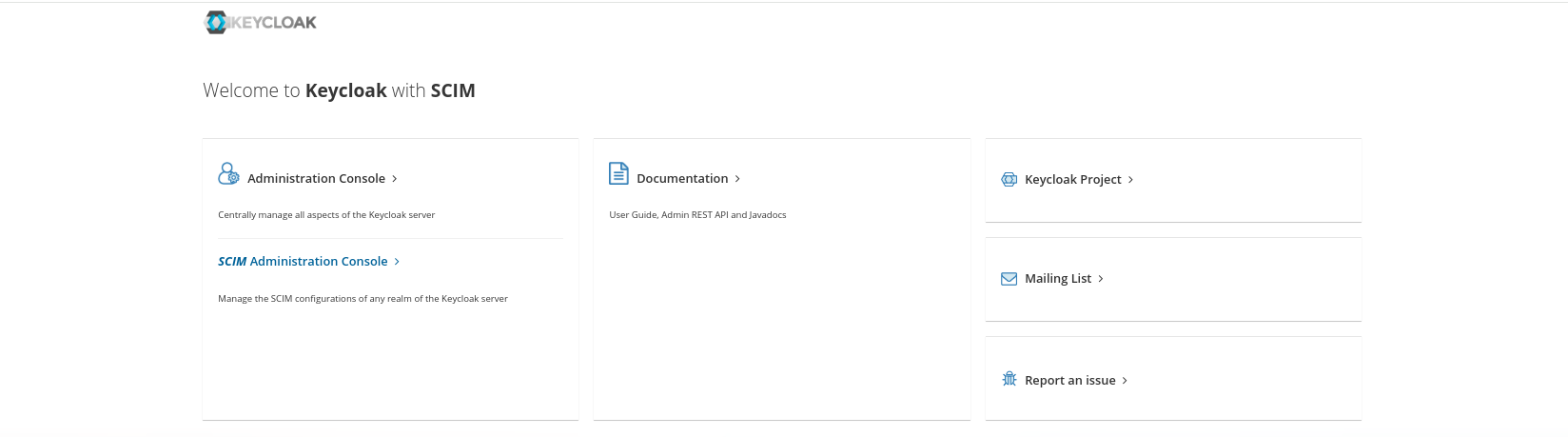
- Enable SCIM for the realm.
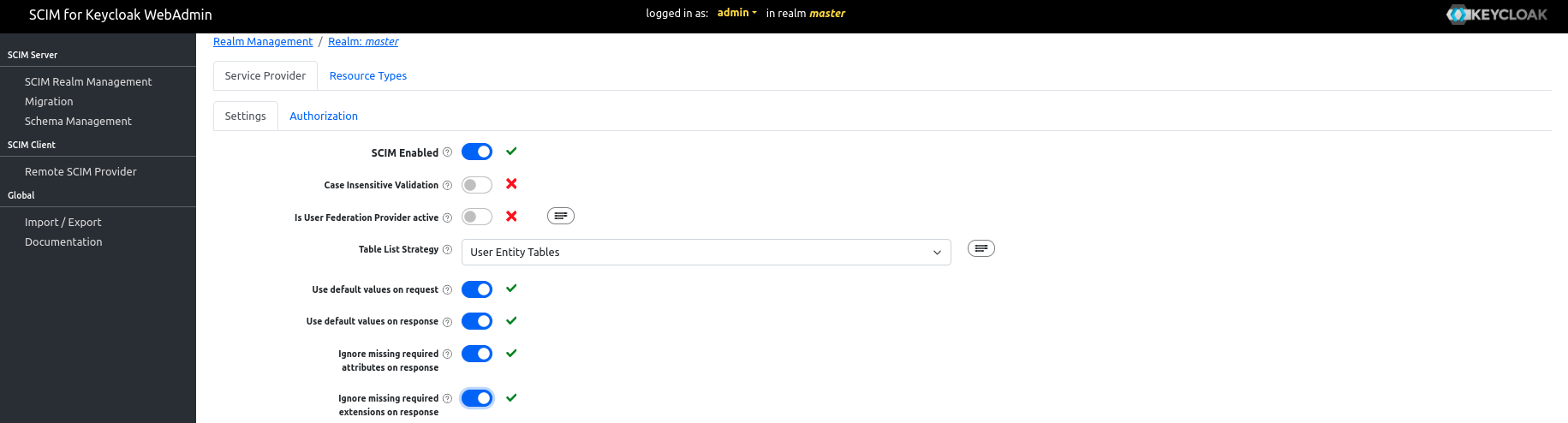
- Disable
BulkandPassword synchronization— these operations are not supported by Kestra.
- Connect to the
- Create a SCIM Client:
- Navigate to the
Remote SCIM Providersection - Fill the
Base URLfield with your KestraSCIM Endpoint: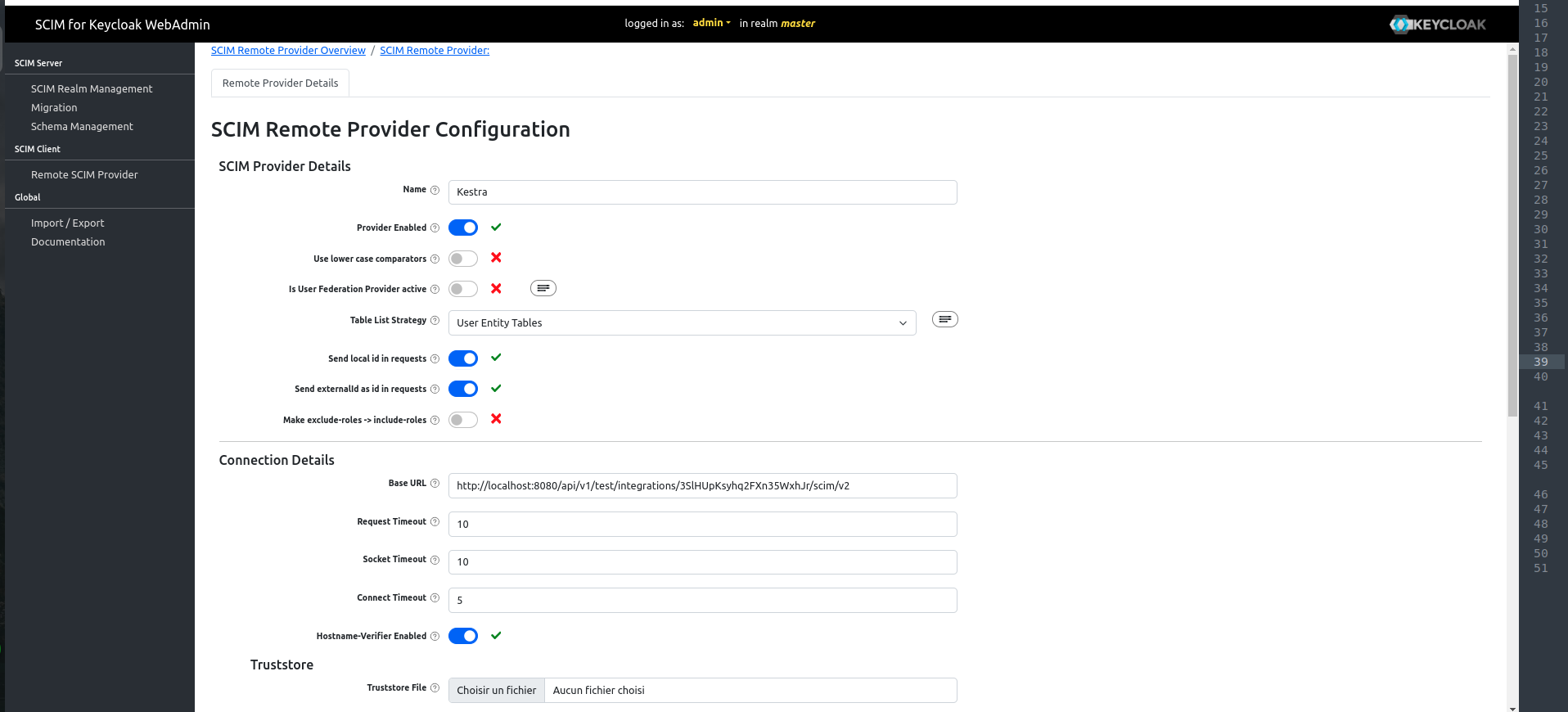
- Fill the
Authenticationwith your KestraSecret Token:
- Navigate to the
- Toggle Enabled in the Kestra Provisioning Integration to start syncing users and groups from Keycloak to Kestra.
Additional resources
Was this page helpful?