
Build Custom User Interfaces for Workflows with Apps
For the complete documentation index, see llms.txt. For a full content snapshot, see llms-full.txt. Append.mdto anykestra.io/docs/*URL for plain Markdown.
Build custom UIs to interact with Kestra from the outside world.
What are Apps
Apps let you wrap any Kestra flow in a custom UI — forms for data entry, output displays, approval buttons, progress indicators, and markdown blocks — without writing any frontend code. Building and serving a frontend, connecting it to Kestra’s API, validating user inputs, handling responses, managing workflow outputs, and handling authentication and authorization — Apps take care of all of that.
Flows act as the backend, processing data and executing tasks. Apps act as the frontend, giving anyone — including business users without Kestra access — a clean interface to trigger executions, submit approvals, and view results.
Apps work well for external-facing forms and for internal workflows such as approvals, requests, and guided operations.
Common App patterns
Start with one of these patterns when designing your own App:
- FTP upload portal: give users a simple upload form while Kestra handles the backend credentials and transfer logic. See the business user Apps blog example.
- Self-serve analytics request: let users choose a dimension and time range, run a query and chart generation flow, and return the generated output on
SUCCESS. See the dynamic self-serve example. - AI-assisted intake or user research assistant: collect free-form context from a sales, product, or support team member, run an LLM-backed flow, and display the suggested answer or categorization back in the App. See the everyday automation example.
- VM or infrastructure request: collect the requested environment, size, region, and justification on
OPEN, show validation progress onRUNNING, pause for approval onPAUSE, then display the created VM details onSUCCESS. This pattern also fits the infrastructure workflows described in the infrastructure automation blog. - Human-in-the-loop review: display task outputs, logs, or model results, then let an approver accept or reject the execution from the same screen.
Start by mapping the user journey:
- What should the user submit?
- What should they see while the flow is running?
- Does the flow need approval or review?
- What is the final outcome you want to show back in the App?
Those answers determine which blocks to choose for each stage.
For more patterns, browse the Apps-focused posts in the blog section and solutions content.
How App stages map to execution progress
The stage-based model lets a single app guide users through the full request lifecycle — from submission through approval to delivery — by rendering different blocks based on the current execution state.
| App stage | What the user sees | What usually happens in the flow |
|---|---|---|
OPEN | The initial form or landing page | No execution exists yet. The user is about to submit a request. |
CREATED | Optional confirmation that the request was accepted | Kestra created the execution and is about to start processing it. |
RUNNING | Progress text, logs, loading indicators, or intermediate outputs | Tasks are actively running. |
PAUSE | Approval or review screen | The flow is waiting on a paused task or a manual decision. |
RESUME | Post-approval confirmation and follow-up details | The paused execution was resumed and continues running. |
SUCCESS | Final outputs, download links, or next-step buttons | The execution completed successfully. |
FAILURE, ERROR, FALLBACK | Error messages, logs, retry guidance, escalation links | The execution did not complete as expected. |
For example, a VM request app might start with an OPEN form, move to RUNNING while Kestra validates the request, switch to PAUSE while a platform engineer reviews the requested size and environment, then show SUCCESS once the VM has been provisioned.
This stage-based layout is what makes Apps easier for non-technical users: they don’t need to understand workflow internals, only the current step of their request.
Creating Apps in code
If you already have a flow, building an App is a single YAML file: point it at the flow’s namespace and flowId, define what users see at each execution stage with layout blocks, and save. No additional backend code is required — your flow is already the backend.
To create a new app, go to Apps and click + Create. Add your app configuration as YAML and click Save. Like flows, apps have multiple editor views — you can configure the app while viewing documentation, previewing the layout, or searching the blueprint repository.
Set disabled: true to stage an app before release. A disabled app does not appear in the catalog and cannot be opened via its URL until you enable it.
For the full list of available blocks and their properties, see App layout blocks below.
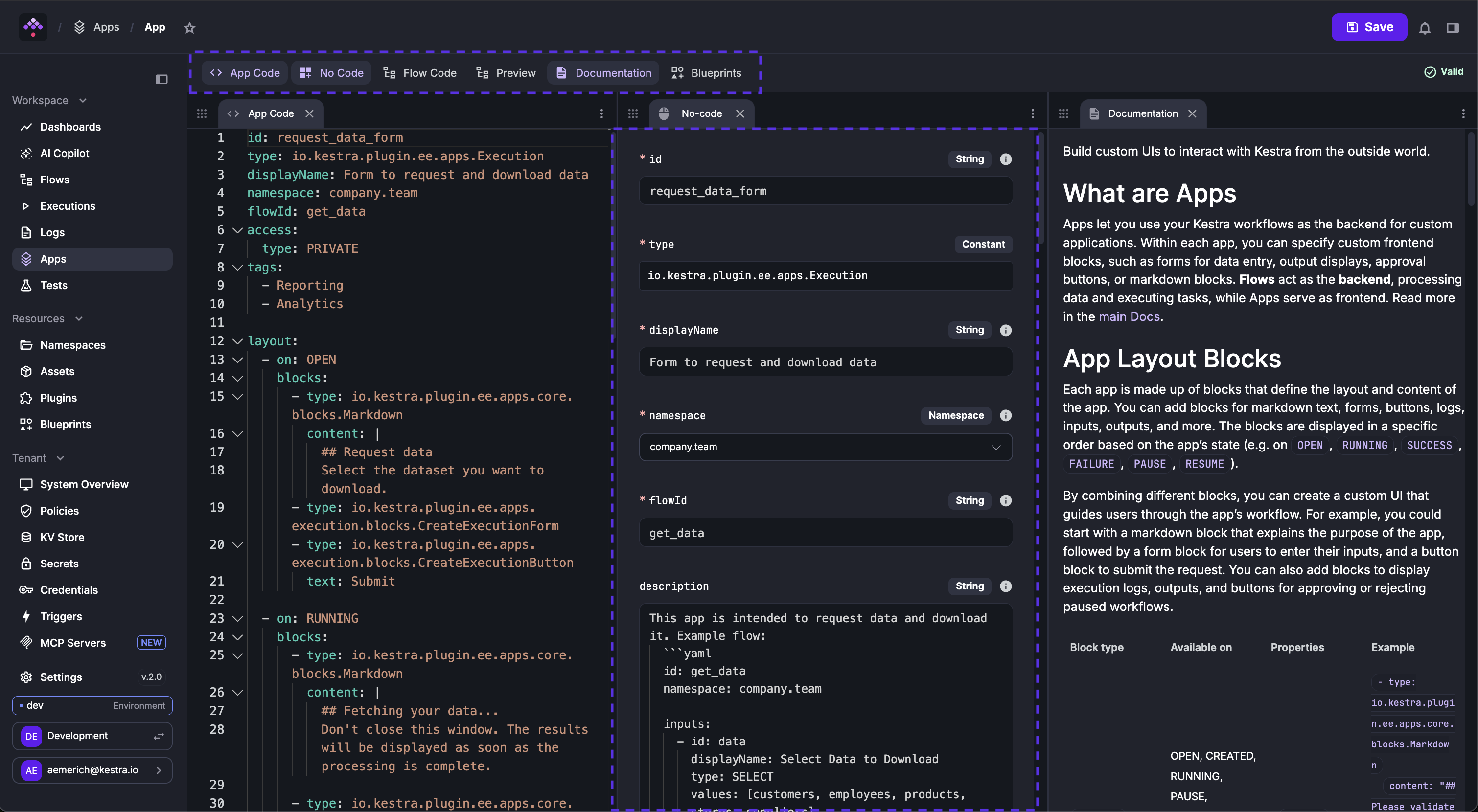
App to run a Hello World flow
Every app is backed by a flow. The following flow accepts a name input and logs a message when triggered:
id: myflownamespace: company.team
inputs:  - id: user    type: STRING    defaults: World
tasks:  - id: hello    type: io.kestra.plugin.core.log.Log    message: Hello {{ inputs.user }}
Then add an app that triggers that flow:
id: hello_world_formtype: io.kestra.plugin.ee.apps.ExecutiondisplayName: Hello World Formnamespace: company.teamflowId: myflowaccess:  type: PUBLIC
layout:  - on: OPEN    blocks:      - type: io.kestra.plugin.ee.apps.core.blocks.Markdown        content: |          ## Say hello          Enter a name and submit the form.      - type: io.kestra.plugin.ee.apps.execution.blocks.CreateExecutionForm      - type: io.kestra.plugin.ee.apps.execution.blocks.CreateExecutionButton        text: Submit
- on: SUCCESS blocks: - type: io.kestra.plugin.ee.apps.core.blocks.Alert style: SUCCESS showIcon: true content: Your request completed successfully. - type: io.kestra.plugin.ee.apps.execution.blocks.LogsYou can find a related example in the enterprise-edition-examples repository.
This app is PUBLIC, so anyone with the URL can access it without logging in. Set access.type to PRIVATE to restrict it to authenticated users.
App to request and download data
A common pattern is to let business users request a filtered dataset and download it as a file — no Kestra access required. The flow fetches data from an external API, filters and sorts it based on user inputs, writes a CSV, and surfaces a summary string and the file as typed flow outputs. The app wraps that flow in a form, shows a loading indicator while it runs, and presents the summary and a download button on success.
Flow:
id: product-reportnamespace: company.ops
inputs:  - id: requested_by    type: STRING    displayName: Requested By
  - id: category    type: SELECT    displayName: Product Category    values:      - smartphones      - laptops      - fragrances      - skincare      - groceries      - furniture
  - id: min_rating    type: FLOAT    displayName: Minimum Rating    defaults: 4.0
  - id: sort_by    type: SELECT    displayName: Sort By    values:      - rating      - price      - stock
tasks:  - id: fetch_products    type: io.kestra.plugin.core.http.Download    uri: "https://dummyjson.com/products/category/{{ inputs.category }}?limit=100"
  - id: build_report    type: io.kestra.plugin.scripts.python.Script    containerImage: python:3.12-slim    inputFiles:      data.json: "{{ outputs.fetch_products.uri }}"    script: |      import csv      import json
      with open("data.json") as f:          products = json.load(f)["products"]
      filtered = [p for p in products if p["rating"] >= {{ inputs.min_rating }}]      filtered.sort(key=lambda p: p["{{ inputs.sort_by }}"], reverse=True)
      fields = ["title", "brand", "category", "price", "rating", "stock", "discountPercentage"]      with open("report.csv", "w", newline="") as f:          writer = csv.DictWriter(f, fieldnames=fields, extrasaction="ignore")          writer.writeheader()          writer.writerows(filtered)
      avg_price = sum(p["price"] for p in filtered) / len(filtered) if filtered else 0      avg_rating = sum(p["rating"] for p in filtered) / len(filtered) if filtered else 0
      summary = (          f"Report for {{ inputs.requested_by }}: "          f"{len(filtered)} {{'{{ inputs.category }}'}} products rated ≥ {{ inputs.min_rating }}. "          f"Avg price ${avg_price:.2f} · Avg rating {avg_rating:.2f}/5 · "          f"Sorted by {{ inputs.sort_by }}."      )
      print("::" + json.dumps({"outputs": {"summary": summary, "count": len(filtered)}}) + "::")    outputFiles:      - report.csv
outputs:  - id: report_summary    type: STRING    value: "{{ outputs.build_report.vars.summary }}"
- id: report_file type: FILE value: "{{ outputs.build_report.outputFiles['report.csv'] }}"App:
id: product_reporttype: io.kestra.plugin.ee.apps.Executionnamespace: company.opsdisplayName: Product ReportflowId: product-reportaccess:  type: PRIVATE  catalog: true
layout:  - on: OPEN    blocks:      - type: io.kestra.plugin.ee.apps.core.blocks.Markdown        content: "## Submit a request"      - type: io.kestra.plugin.ee.apps.execution.blocks.CreateExecutionForm      - type: io.kestra.plugin.ee.apps.execution.blocks.CreateExecutionButton        text: Submit
  - on: RUNNING    blocks:      - type: io.kestra.plugin.ee.apps.core.blocks.Markdown        content: "## Keep this page open to see the results"      - type: io.kestra.plugin.ee.apps.core.blocks.Loading      - type: io.kestra.plugin.ee.apps.execution.blocks.Logs      - type: io.kestra.plugin.ee.apps.execution.blocks.CancelExecutionButton        text: Cancel request        style: WARNING
  - on: SUCCESS    blocks:      - type: io.kestra.plugin.ee.apps.core.blocks.Alert        style: SUCCESS        showIcon: true        content: Your request has completed.      - type: io.kestra.plugin.ee.apps.execution.blocks.Outputs      - type: io.kestra.plugin.ee.apps.execution.blocks.Logs      - type: io.kestra.plugin.ee.apps.core.blocks.Button        text: Submit a new request        url: "{{ app.url }}"        style: DEFAULT
- on: FAILURE blocks: - type: io.kestra.plugin.ee.apps.core.blocks.Alert style: ERROR showIcon: true content: The request failed. The logs below show what went wrong. - type: io.kestra.plugin.ee.apps.execution.blocks.Logs filter: logLevel: ERRORInteractive demo
This pattern works for any reporting or analytics use case where users need to request and download data without accessing Kestra directly.
App to request a VM and get it approved
Self-service infrastructure requests are one of the most common approval-based App patterns. A requester fills out a form with the VM size, environment, region, and business justification. The flow logs and validates the request, then pauses for review. A platform engineer opens the same app in its PAUSE state, sees the original request details, adds reviewer notes, and either approves (resumes the execution) or rejects (cancels it). On approval, the flow continues to provisioning.
This example demonstrates two distinct user roles interacting with the same app at different stages.
Flow:
id: vm-requestnamespace: company.ops
inputs:  - id: requested_by    type: STRING    displayName: Requested By
  - id: vm_size    type: SELECT    displayName: VM Size    values:      - "small (2 vCPU / 4 GB)"      - "medium (4 vCPU / 8 GB)"      - "large (8 vCPU / 16 GB)"
  - id: environment    type: SELECT    displayName: Environment    values:      - dev      - staging      - production
  - id: region    type: SELECT    displayName: Region    values:      - us-east-1      - eu-west-1      - ap-southeast-1
  - id: justification    type: STRING    displayName: Business Justification
tasks:  - id: validate_request    type: io.kestra.plugin.core.log.Log    message: |      New VM request from {{ inputs.requested_by }}.      Size: {{ inputs.vm_size }}, Environment: {{ inputs.environment }}, Region: {{ inputs.region }}.      Justification: {{ inputs.justification }}
  - id: await_approval    type: io.kestra.plugin.core.flow.Pause    onResume:      - id: notes        type: STRING        displayName: Reviewer Notes        required: false
- id: provision_vm type: io.kestra.plugin.core.log.Log message: | Provisioning {{ inputs.vm_size }} in {{ inputs.environment }}/{{ inputs.region }} for {{ inputs.requested_by }}. Reviewer notes: {{ resume.notes }}The Pause task’s onResume inputs define what the reviewer submits when approving — in this case, optional notes. Those values are available to downstream tasks as {{ resume.<id> }}.
App:
id: vm_requesttype: io.kestra.plugin.ee.apps.ExecutiondisplayName: VM Requestnamespace: company.opsflowId: vm-requestaccess:  type: PRIVATE  catalog: true
layout:  - on: OPEN    blocks:      - type: io.kestra.plugin.ee.apps.core.blocks.Markdown        content: |          ## Request a Virtual Machine          Fill in the details below. Your request will be validated and sent for approval before provisioning begins.      - type: io.kestra.plugin.ee.apps.execution.blocks.CreateExecutionForm      - type: io.kestra.plugin.ee.apps.execution.blocks.CreateExecutionButton        text: Submit Request        style: SUCCESS
  - on: RUNNING    blocks:      - type: io.kestra.plugin.ee.apps.core.blocks.Markdown        content: "## Validating your request…"      - type: io.kestra.plugin.ee.apps.core.blocks.Loading      - type: io.kestra.plugin.ee.apps.execution.blocks.Logs
  - on: PAUSE    blocks:      - type: io.kestra.plugin.ee.apps.core.blocks.Markdown        content: |          ## Review this VM request          Inspect the request details below, then approve or reject.      - type: io.kestra.plugin.ee.apps.execution.blocks.Inputs      - type: io.kestra.plugin.ee.apps.execution.blocks.ResumeExecutionForm      - type: io.kestra.plugin.ee.apps.execution.blocks.ResumeExecutionButton        text: Approve        style: SUCCESS      - type: io.kestra.plugin.ee.apps.execution.blocks.CancelExecutionButton        text: Reject        style: DANGER
  - on: SUCCESS    blocks:      - type: io.kestra.plugin.ee.apps.core.blocks.Alert        style: SUCCESS        showIcon: true        content: Your VM has been provisioned.      - type: io.kestra.plugin.ee.apps.execution.blocks.Logs      - type: io.kestra.plugin.ee.apps.core.blocks.Button        text: Submit a new request        url: "{{ app.url }}"        style: DEFAULT
- on: FAILURE blocks: - type: io.kestra.plugin.ee.apps.core.blocks.Alert style: ERROR showIcon: true content: The request could not be processed. Review the logs for details. - type: io.kestra.plugin.ee.apps.execution.blocks.Logs filter: logLevel: ERRORThe PAUSE stage shows the original request inputs (ExecutionInputs), the onResume form for reviewer notes (ResumeExecutionForm), and the approve/reject buttons. Clicking Approve resumes the execution; clicking Reject cancels it.
This pattern applies directly to database access requests, sandbox environment creation, firewall rule approvals, SaaS account provisioning, and any other workflow that needs a human gate before it continues.
Creating Apps without code
Apps can also be built using the no-code editor. Every block, property, and configuration option available in YAML is fully supported visually. Changes made in the no-code editor are immediately reflected in the code view, and vice versa — teams can switch between approaches at any time without losing the underlying YAML definition.
App catalog
The App Catalog lists all available apps in a tenant. Filter by name, type, namespace, or tags. From this page you can also create new apps, edit existing ones, enable or disable individual apps, or delete them.
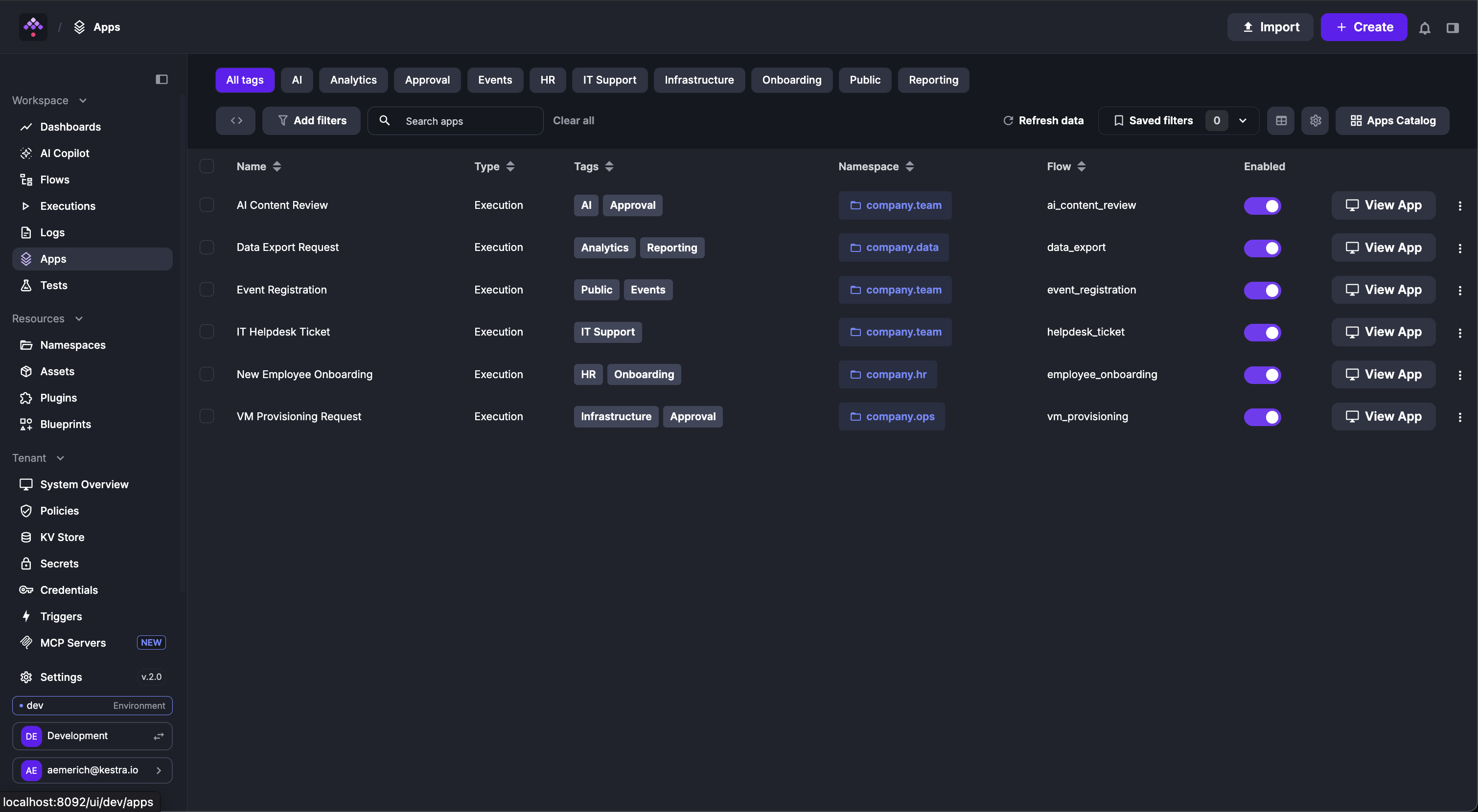
Kestra provides a direct access URL to the Apps Catalog in the format http://your_host/ui/your_tenant/apps/catalog. Any Kestra user with at least APP: VIEW permission in that tenant can reach this URL.
The catalog page requires authentication, so it is never publicly accessible. Users see only the apps they are permitted to see based on their RBAC permissions. You can limit visibility to specific groups by setting the groups property in the access block:
access: catalog: true type: PRIVATE groups: - AdminsHiding an app from the catalog
Setting catalog: false removes the app from the browseable catalog while keeping its direct URL fully functional. Use this when you want to share an app with a specific audience via URL without surfacing it to everyone who can browse the catalog.
access: catalog: false type: PRIVATEManaging apps in bulk
From the Apps Catalog, you can select multiple apps and enable, disable, or delete them in a single operation. Bulk operations report partial failures individually so you can see which apps were affected and which were not.
You can also export a selection of apps as a ZIP archive (kestra-{tenant}-apps.zip) and import that archive — or a multi-document YAML file — into another tenant or environment. The export produces one {namespace}-{id}.yaml file per app. On import, each app is validated independently; errors are reported per file so a single bad app does not block the rest.
Customize the Apps Catalog
Customize the catalog’s title, colors, and banner image to match your organization’s look and feel. Go to Instance Owner, then in the left sidebar under your tenant, click Apps Catalog.
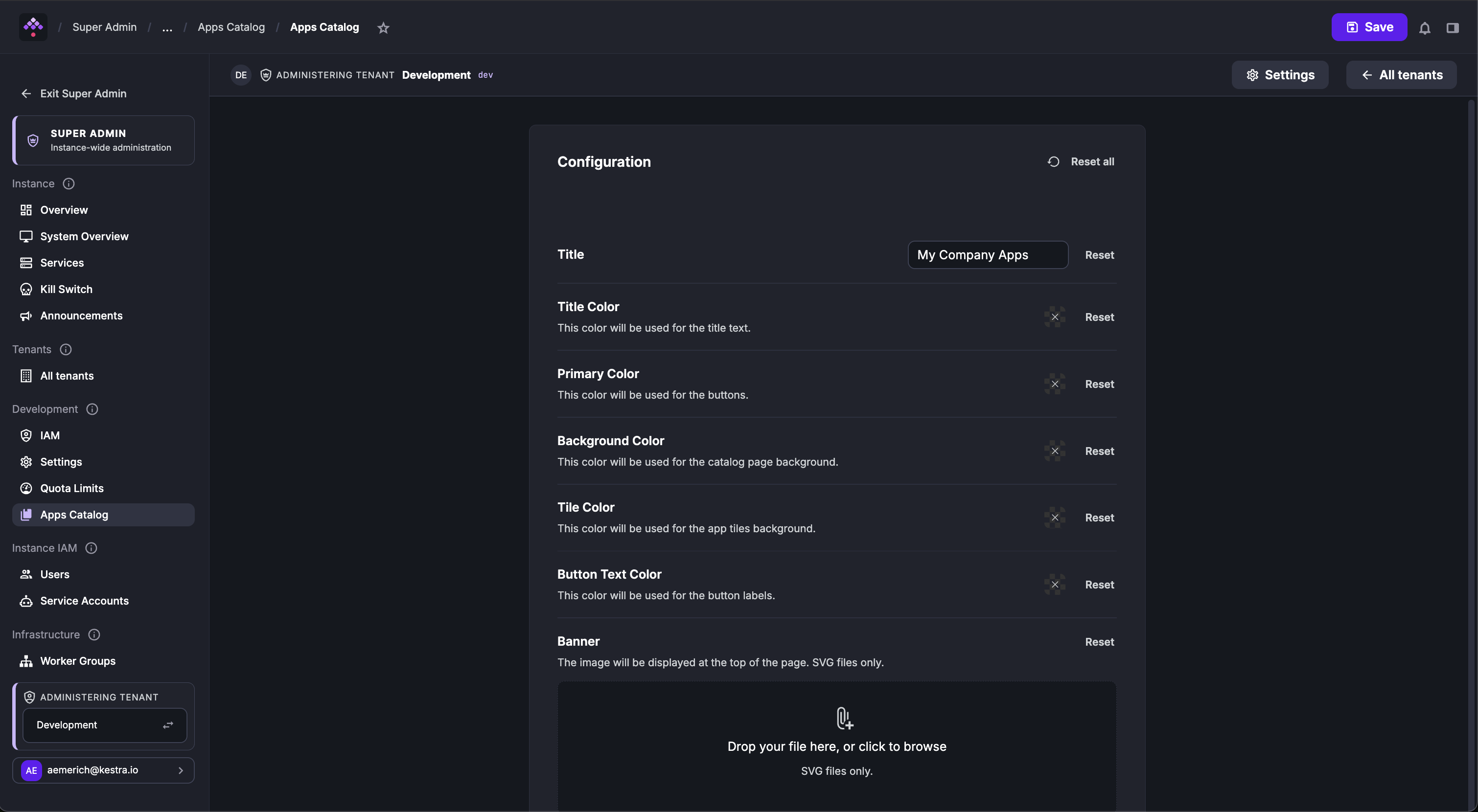
The configuration panel lets you set a Title, Title Color, Primary Color (used for buttons), Background Color, Tile Color, Button Text Color, and a Banner image displayed at the top of the catalog page.
The banner image must be an .svg file.
Once saved, open the Apps Catalog to see your branding:
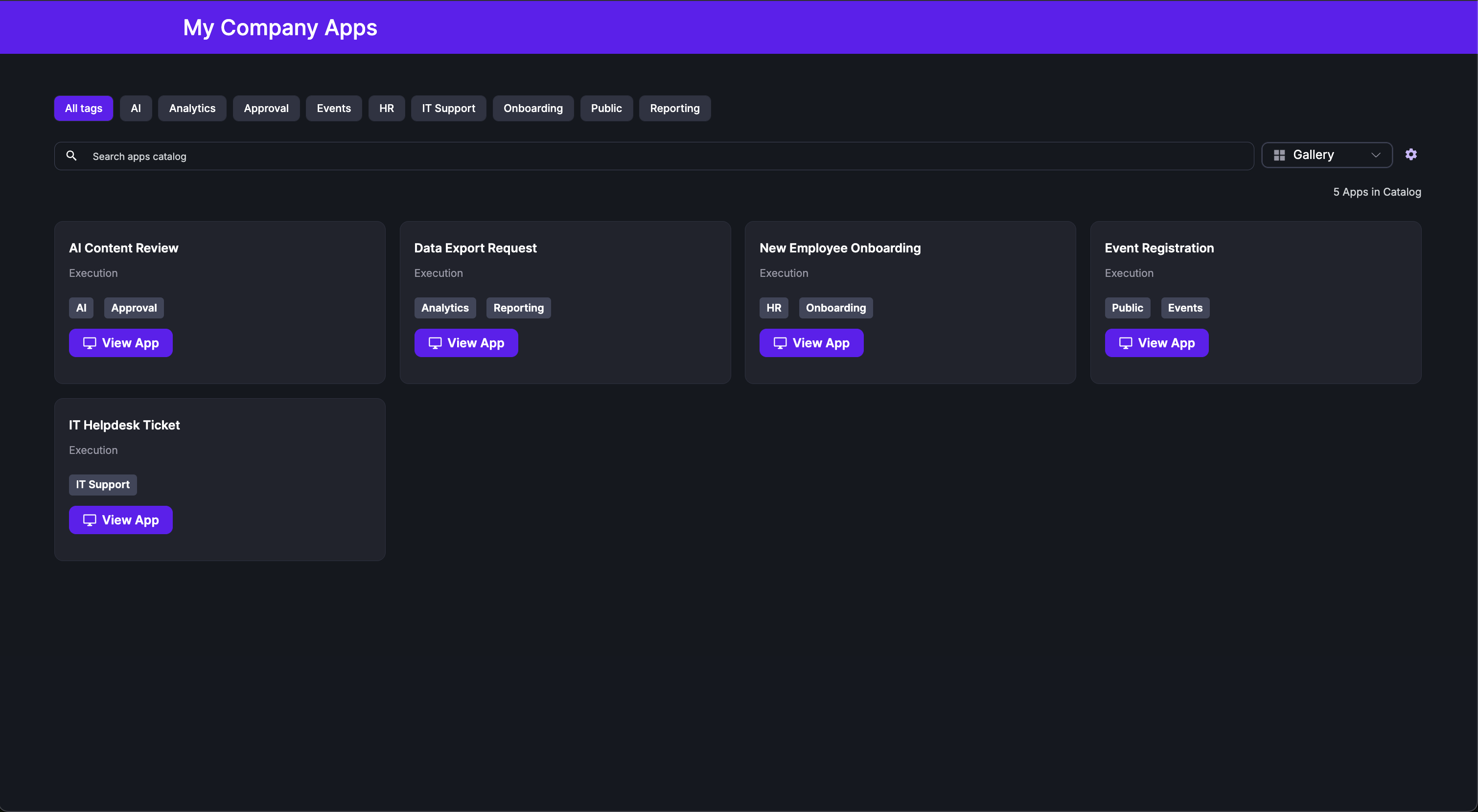
Access these settings any time from the gear icon in the catalog.
App tags
Add custom tags to organize and filter apps in the catalog. For example: DevOps, data-team, project-x.
App URL
Each app has a unique URL — share it with team members, customers, or partners, or embed it in internal tools. Anyone with the link (and appropriate access) can open the app directly.
The URL format is: https://yourHost/ui/tenantId/apps/appUid, for example http://localhost:8080/ui/release/apps/5CS8qsm7YTif4PWuAUWHQ5.
Copy the URL from the Apps Catalog.
App URL generation relies on the kestra.url server configuration property. If this property is not set, generated links may be broken or missing. Set it to the externally reachable base URL of your Kestra instance, for example kestra.url: https://kestra.example.com.
App expressions
From within flows, you can generate app URLs using the Enterprise-only appLink expression. See Workflow Functions for parameters and examples.
App access and RBAC permissions
Each app has an access block that controls who can open and submit it.
Public access
When an app is set to PUBLIC, anyone with the URL can open the form and submit requests without logging in. This is suitable for public-facing forms, surveys, or intake pages you share via email or embed on a website.
For PUBLIC apps, execution IDs exposed through file download or log links are encrypted so that anonymous users cannot reference executions outside the app.
Private access for using apps
When an app is set to PRIVATE, only users with APP: EXECUTE permission on the app’s namespace can open or submit it. PRIVATE apps are also only visible in the App Catalog to users with APP: EXECUTE — they do not appear for users who only hold APP: LIST or APP: VIEW. You can further narrow access to specific IAM groups using the groups field:
access: type: PRIVATE groups: - DataOps - FinanceGroup membership is checked at runtime on every request. Users who belong to at least one listed group are granted access; users outside those groups are denied even if they have APP: EXECUTE permission on the namespace. If groups is omitted, any authenticated user with APP: EXECUTE permission on the namespace can use the app.
APP: EXECUTE is namespace-scoped. A user with APP: EXECUTE on company.team cannot dispatch an app in company.other, even if both apps appear in the same catalog view.
This makes the PRIVATE + groups combination useful when you want to allow a specific group of business stakeholders or external partners to use an app without giving them access to the broader Kestra UI.
Private access for building apps
The APP resource controls who can create, view, update, or delete apps within a tenant. It can be scoped to specific namespaces. APP: EXECUTE, APP: ACCESS_FILES, and APP: ACCESS_LOGS govern the ability to submit requests through an app and access its artifacts; the remaining APP actions govern the ability to build and manage apps.
App executions
Each time a user creates an execution by submitting a form in the app, a new execution is generated with the system label system.app and a value of yourAppId. For example, to filter all executions created by the computeResourcesForm app, you can search for system.app:computeResourcesForm in the label filter.
For every execution, you can track the user inputs, see the current state, view logs, and check the outputs — all from the Kestra UI. This lets you observe, troubleshoot, and manage app executions just as you would any other workflow execution.
App expiration
You can limit an app to a specific time window using the expiration property. Once the window closes, the app is filtered out of the catalog and blocks new submissions — existing executions are unaffected.
id: survey_formtype: io.kestra.plugin.ee.apps.ExecutiondisplayName: Q2 Surveynamespace: company.teamflowId: survey_processoraccess: type: PUBLICexpiration: startDate: "2025-06-01T00:00:00Z" endDate: "2025-06-30T23:59:59Z"layout: - on: OPEN blocks: - type: io.kestra.plugin.ee.apps.core.blocks.Markdown content: "## Please complete the survey before the end of June." - type: io.kestra.plugin.ee.apps.execution.blocks.CreateExecutionForm - type: io.kestra.plugin.ee.apps.execution.blocks.CreateExecutionButton text: SubmitBoth fields are optional:
- Omit
startDateand the app is available immediately. - Omit
endDateand the app never expires. - Omit
expirationentirely and the app stays active indefinitely.
Expiration is evaluated against the server clock at the moment a user opens or submits the app.
App thumbnails
Add a thumbnail to give catalog users a visual indicator of what the app does. Upload an image file as a namespace file to the same namespace as the app’s connected flow. Supported formats include .svg, .jpg, and .png. The example below adds kestra-icon.svg.
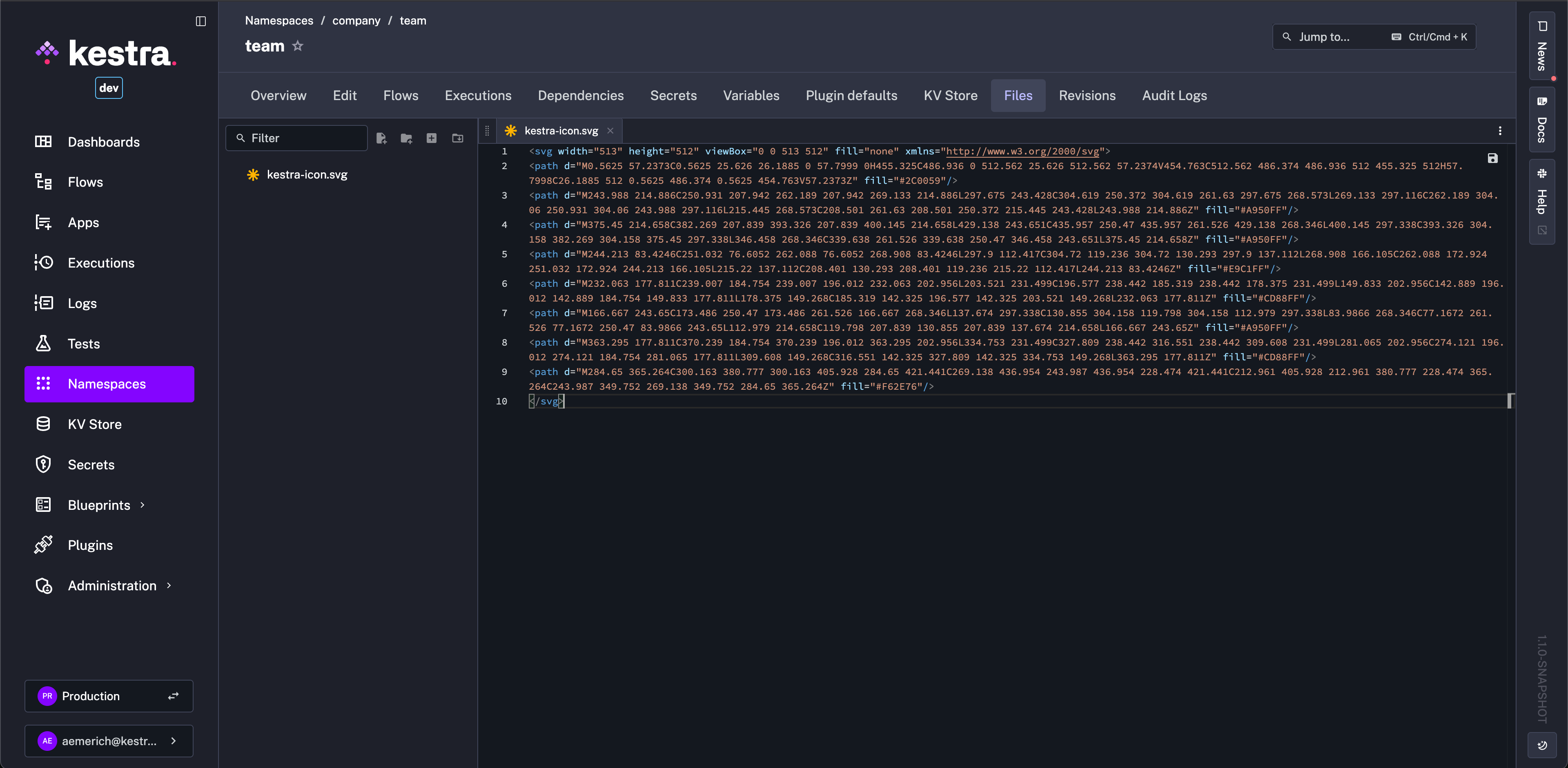
In your app code, add the thumbnail string property and point it toward the correct namespace file using nsfiles:///<your-file>. For example:
id: request_data_formtype: io.kestra.plugin.ee.apps.ExecutiondisplayName: Form to request and download datanamespace: company.teamflowId: get_datathumbnail: "nsfiles:///kestra-icon.svg" # Point this property to the correct namespace file.access: type: PRIVATEtags: - Reporting - AnalyticsOnce added, open the Apps Catalog — a new thumbnail displays on the connected app:
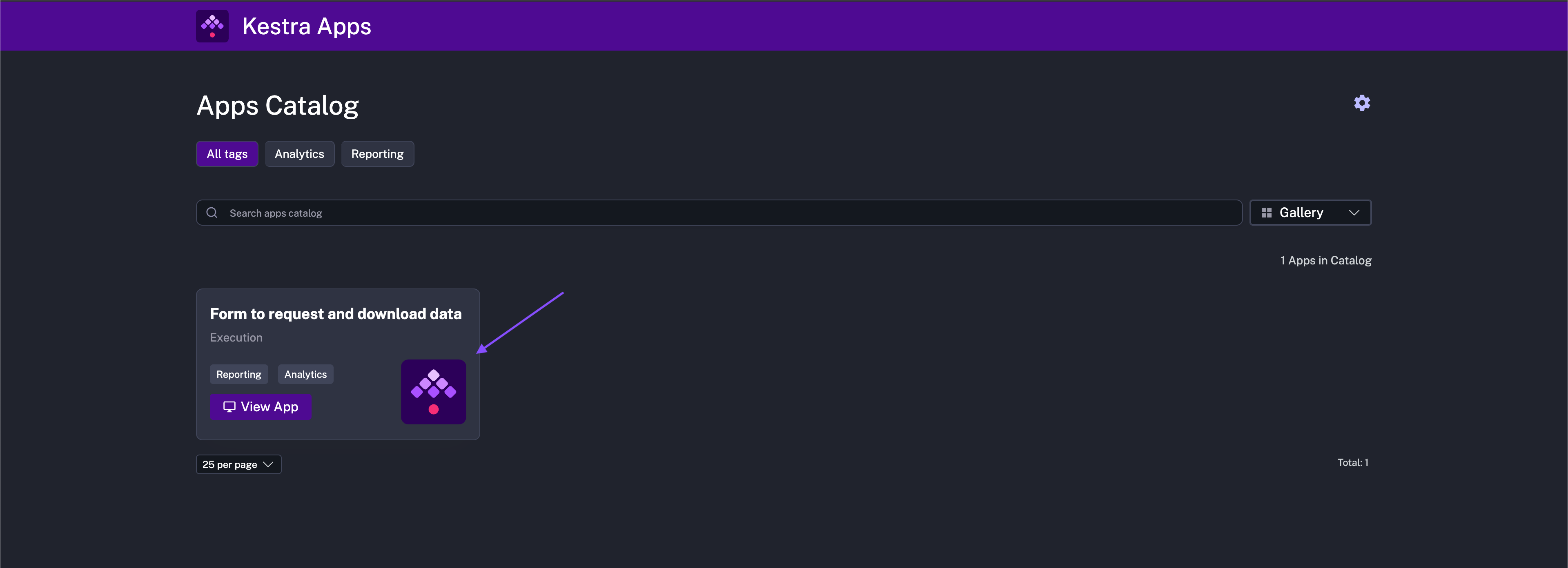
App layout blocks
Each app layout is a list of stage-specific blocks. Each block renders when the execution reaches the matching stage (OPEN, RUNNING, SUCCESS, FAILURE, PAUSE, RESUME). Combine blocks to guide users through the full lifecycle of a request — form on OPEN, progress indicator on RUNNING, download link and logs on SUCCESS.
| Block type | Available on | Properties | Example |
|---|---|---|---|
Markdown | OPEN, CREATED, RUNNING, PAUSE, RESUME, SUCCESS, FAILURE, FALLBACK | - content (Pebble template) | - type: io.kestra.plugin.ee.apps.core.blocks.Markdowncontent: "## Please validate the request. Inspect the logs and outputs below. Then, approve or reject the request." |
RedirectTo | OPEN, CREATED, RUNNING, PAUSE, RESUME, SUCCESS, FAILURE, ERROR, FALLBACK | - url: redirect URL - delay: delay in seconds | - type: io.kestra.plugin.ee.apps.core.blocks.RedirectTourl: "https://kestra.io/docs"delay: "PT60S" |
CreateExecutionForm | OPEN | None | - type: io.kestra.plugin.ee.apps.execution.blocks.CreateExecutionForm |
ResumeExecutionForm | PAUSE | None | - type: io.kestra.plugin.ee.apps.execution.blocks.ResumeExecutionForm |
CreateExecutionButton | OPEN | - text - style: DEFAULT, SUCCESS, DANGER, INFO - size: SMALL, MEDIUM, LARGE | - type: io.kestra.plugin.ee.apps.execution.blocks.CreateExecutionButtontext: "Submit"style: "SUCCESS"size: "MEDIUM" |
CancelExecutionButton | CREATED, RUNNING, PAUSE | - text - style: DEFAULT, SUCCESS, DANGER, INFO - size: SMALL, MEDIUM, LARGE | - type: io.kestra.plugin.ee.apps.execution.blocks.CancelExecutionButtontext: "Reject"style: "DANGER"size: "SMALL" |
ResumeExecutionButton | PAUSE | - text - style: DEFAULT, SUCCESS, DANGER, INFO - size: SMALL, MEDIUM, LARGE | - type: io.kestra.plugin.ee.apps.execution.blocks.ResumeExecutionButtontext: "Approve"style: "SUCCESS"size: "LARGE" |
ExecutionInputs | PAUSE, RESUME, SUCCESS, FAILURE | - filter: include, exclude | - type: io.kestra.plugin.ee.apps.execution.blocks.Inputsfilter:include: []exclude: [] |
ExecutionOutputs | PAUSE, RESUME, SUCCESS, FAILURE | - filter: include, exclude | - type: io.kestra.plugin.ee.apps.execution.blocks.Outputsfilter:include: []exclude: [] |
ExecutionLogs | PAUSE, RESUME, SUCCESS, FAILURE, FALLBACK | - filter: logLevel, taskIds | - type: io.kestra.plugin.ee.apps.execution.blocks.Logsfilter:logLevel: "INFO"taskIds: [] |
Loading | RUNNING | None | - type: io.kestra.plugin.ee.apps.core.blocks.Loading |
Alert | OPEN, CREATED, RUNNING, PAUSE, RESUME, SUCCESS, FAILURE, FALLBACK | - style: SUCCESS, WARNING, ERROR, INFO - showIcon: true, false | - type: io.kestra.plugin.ee.apps.core.blocks.Alertstyle: "WARNING"showIcon: truecontent: "An error occurred!" |
Button | SUCCESS, FAILURE | - text - url - style: DEFAULT, SUCCESS, DANGER, INFO | - type: io.kestra.plugin.ee.apps.core.blocks.Buttontext: "More examples"url: "https://github.com/kestra-io/examples"style: "INFO" |
TaskOutputs | RUNNING, PAUSE, RESUME, SUCCESS | - outputs: list of outputs with displayName, value, and type | - type: io.kestra.plugin.ee.apps.execution.blocks.TaskOutputsoutputs:- displayName: My Task Outputvalue: "{{ outputs.test.value }}"type: FILE |
Dynamic content in the OPEN state
The Markdown block’s content property is a Pebble template. When the layout includes a CreateExecutionForm, {{ inputs.<id> }} is available in the render context and updates live as the user interacts with the form — useful for context-sensitive descriptions that react to dropdown changes.
For example, given a flow with a product SELECT input, the app below renders the current selection inline:
id: software_request_formtype: io.kestra.plugin.ee.apps.ExecutiondisplayName: Software Request Formnamespace: company.teamflowId: software_requestaccess:  type: PRIVATE
layout:  - on: OPEN    blocks:      - type: io.kestra.plugin.ee.apps.execution.blocks.CreateExecutionForm      - type: io.kestra.plugin.ee.apps.core.blocks.Markdown        content: "You are requesting access to: **{{ inputs.product }}**"      - type: io.kestra.plugin.ee.apps.execution.blocks.CreateExecutionButton        text: Submit
  - on: SUCCESS    blocks:      - type: io.kestra.plugin.ee.apps.core.blocks.Alert        style: SUCCESS        content: Your request has been submitted.
Before the user interacts with the form, {{ inputs.* }} resolves to each input’s default value. In other states (RUNNING, SUCCESS, FAILURE), {{ inputs.* }} references the execution’s submitted values.
When the flow uses FORM inputs, CreateExecutionForm renders a multi-step Next/Back wizard — one step per FORM group, a step for ungrouped inputs, then a recap. No additional App configuration is required; the wizard is driven entirely by the flow’s input definition.
File preview and download
The Outputs and TaskOutputs blocks can render file download links for outputs stored in Kestra’s internal storage. File preview, metadata, and download are only available when:
- The app type is
io.kestra.plugin.ee.apps.Execution. - The layout includes an
OutputsorTaskOutputsblock. - The storage path belongs to an execution that the app has access to.
By default, file preview shows the first 100 rows. You can change this server-side with kestra.server.preview.initial-rows (default 100) and cap it with kestra.server.preview.max-rows (default 5000).
Log download
The ExecutionLogs block renders an inline log viewer. When a Logs block is present in the layout, users can also download the full log file directly from the app. Log download is only available for Execution-type apps that include a Logs block in their layout.
Was this page helpful?