
Authenticate Users with Google OIDC
For the complete documentation index, see llms.txt. For a full content snapshot, see llms-full.txt. Append.mdto anykestra.io/docs/*URL for plain Markdown.
Authenticate Kestra users with their Google accounts using Google Identity Platform and OIDC.
Prerequisites
- A Google Cloud project with billing enabled.
- Sufficient permissions to configure Identity Platform and manage identity providers.
See the Google OIDC setup documentation for reference.
Step 1: Enable Identity Platform in Google Cloud
- Go to the Identity Platform page in the Google Cloud Console.
- Confirm the correct project is selected.
Step 2: Add an OIDC Provider in Google Cloud
- In the Identity Platform menu, select Providers.
- Click Add a Provider and choose OpenID Connect.
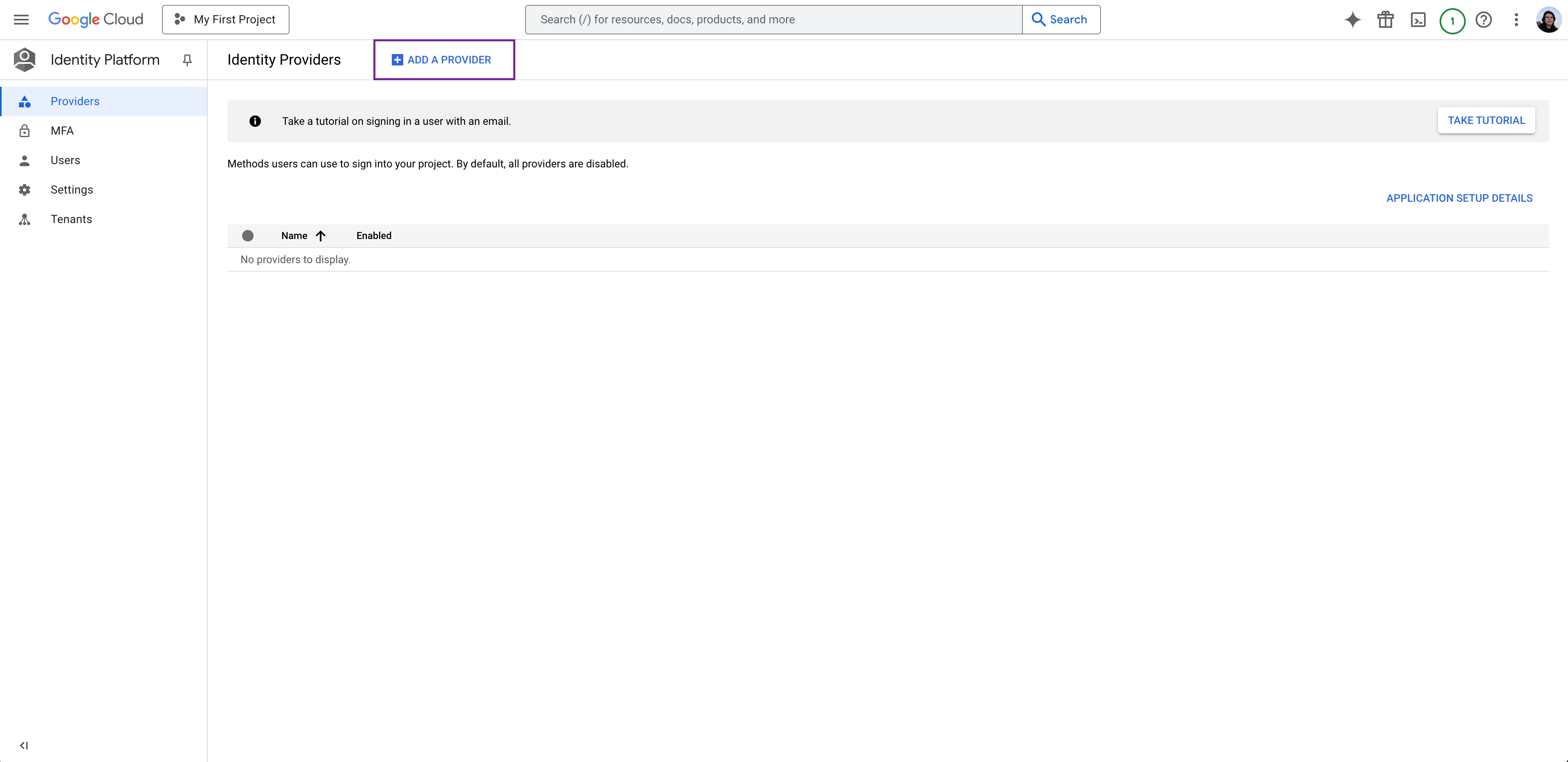
- Configure the OIDC Provider:
- Grant type: Select the Code Flow grant type.
- Provider Name: Enter a display name for the OIDC provider.
- Client ID: Enter the Client ID obtained from Google.
- Client Secret: Enter the Client Secret associated with the Client ID.
- Issuer URL: Provide the Issuer URL (e.g.,
https://accounts.google.com). - Scopes: Specify any additional scopes required by your application.
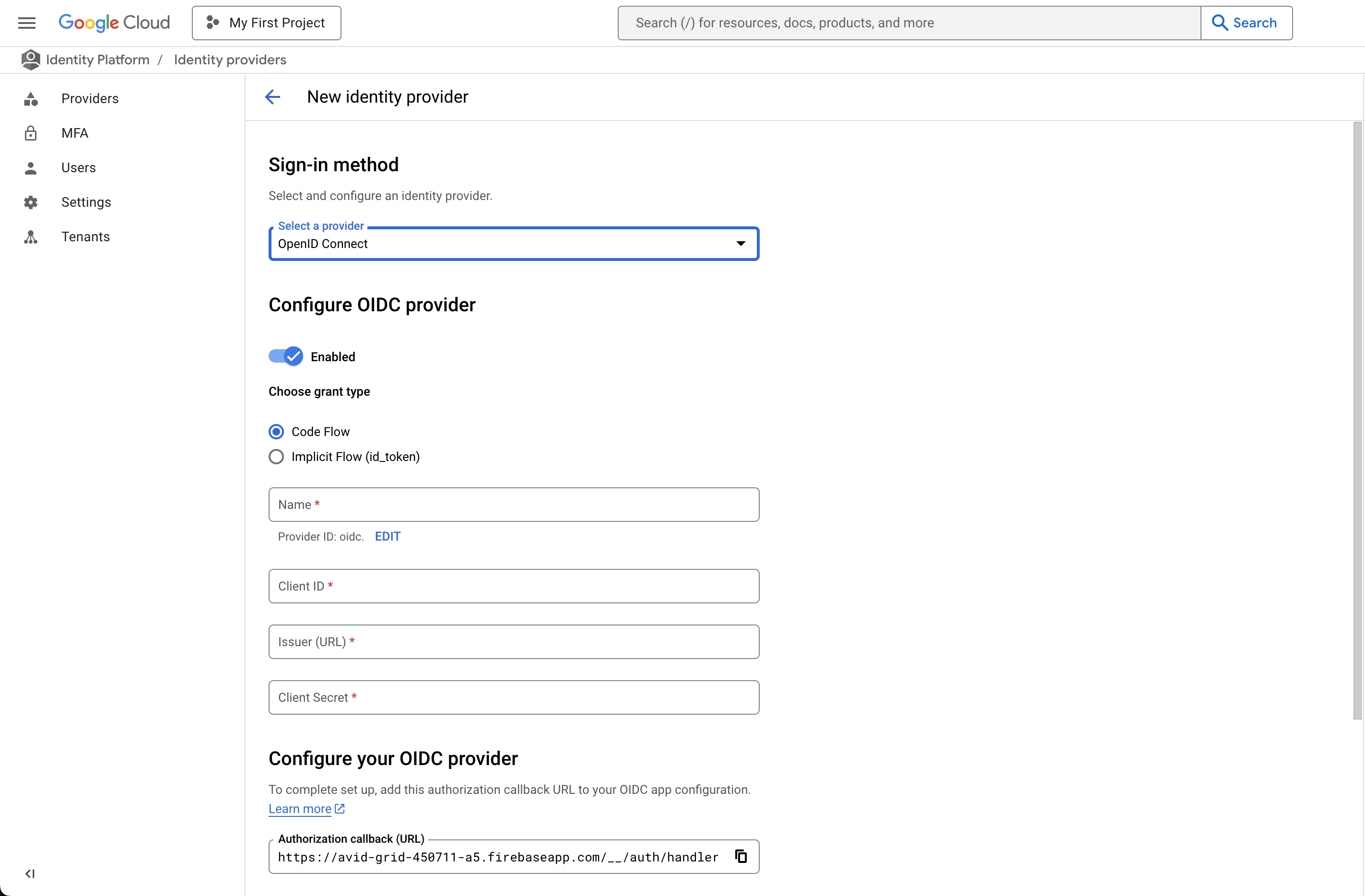
- Click Save to add the provider.
Step 3: Configure Kestra
Add the following to your Kestra Security and Secrets configuration:
micronaut: security: oauth2: enabled: true clients: google: client-id: "{{ clientId }}" client-secret: "{{ clientSecret }}" openid: issuer: 'https://accounts.google.com'Replace clientId and clientSecret with the values from the Google Identity Platform, then restart Kestra.
Additional resources
Was this page helpful?