
Start Flows Automatically with Scheduled, Event, and Webhook Triggers
For the complete documentation index, see llms.txt. For a full content snapshot, see llms-full.txt. Append.mdto anykestra.io/docs/*URL for plain Markdown.
A trigger starts a flow automatically, either on a schedule or in response to an event.
Trigger types
Kestra supports six core trigger types:
- Schedule trigger — runs a flow on a cron schedule with optional calendar conditions.
- Flow trigger — runs a flow when one or more upstream flows complete in a matching state.
- Webhook trigger — runs a flow in response to an inbound HTTP request.
- Polling trigger — runs a flow when new data is detected in an external system.
- Realtime trigger — runs a flow with millisecond latency when an event arrives from a streaming source.
- MCP Tool trigger — exposes a flow as a named tool on a Kestra MCP server, callable by AI agents such as Claude Desktop, Claude Code, and Cursor.
Many other triggers are available from the plugins, such as triggers based on file detection events, e.g. the S3 trigger, or a new message arrival in a message queue, such as the SQS or Kafka trigger.
Trigger common properties
The following properties are common to all triggers:
| Field | Description |
|---|---|
id | The trigger identifier, must be unique within the flow. |
type | The fully qualified class name of the trigger. |
description | The description of the trigger. |
disabled | Set it to true to disable execution of the trigger. |
allowConcurrent | Set it to true to allow multiple executions from this trigger to run at the same time. |
workerSelector | Route this trigger to a specific Worker Queue by tags (EE). See Worker Groups. |
when | A Pebble expression that must evaluate to true for the trigger to fire. |
Trigger variables
Triggers expose metadata through expressions. For example:
{{ trigger.date }}returns the current date for the Schedule trigger{{ trigger.uri }}returns the file or message for file detection or message arrival events{{ trigger.rows }}provides query results for triggers like the PostgreSQL Query trigger{{ trigger._context.id }}and{{ trigger._context.type }}return the ID and fully-qualified type of the trigger that started the execution — available for every trigger type
This example logs the date when the trigger executes the flow:
id: variablesnamespace: company.team
tasks:    - id: hello      type: io.kestra.plugin.core.log.Log      message: "Hello World on {{ trigger.date }}! 🚀"
triggers:    - id: schedule      type: io.kestra.plugin.core.trigger.Schedule      cron: "@hourly"      allowConcurrent: false
Trigger variables like {{ trigger.date }} are only available when the execution is created automatically by the trigger. Running the flow manually will produce an error.
You don’t need an extra task to consume a file or message from the event. Kestra automatically downloads it to internal storage and makes it available via {{ trigger.uri }}. See the plugin docs for a specific trigger and Blueprints tagged Trigger for examples.
Identifying the trigger in a multi-trigger flow
When a flow has multiple triggers, use {{ trigger._context.id }} and {{ trigger._context.type }} to determine which trigger started the current execution. Unlike trigger-specific variables such as trigger.date, these two fields are available for every trigger type.
The flow below branches based on which trigger started the execution:
id: multi_trigger_flownamespace: company.team
tasks:  - id: check_trigger    type: io.kestra.plugin.core.flow.If    condition: "{{ trigger._context.type == 'io.kestra.plugin.core.trigger.Schedule' }}"    then:      - id: scheduled_path        type: io.kestra.plugin.core.log.Log        message: "Started by schedule '{{ trigger._context.id }}' on {{ trigger.date }}"    else:      - id: webhook_path        type: io.kestra.plugin.core.log.Log        message: "Started by webhook '{{ trigger._context.id }}'"
triggers:  - id: daily    type: io.kestra.plugin.core.trigger.Schedule    cron: "@daily"
  - id: api    type: io.kestra.plugin.core.trigger.Webhook    key: my_secret_key
Concurrency
By default, each trigger allows only one active execution at a time. If an execution is still running when the next trigger fires, the new execution is queued rather than started immediately. Manual executions from the UI or API are not subject to this limit — they always start regardless of trigger state.
To allow multiple concurrent executions from the same trigger, set allowConcurrent: true on the trigger.
when and dependsOn
Kestra 2.0 replaces the old conditions list on triggers with two composable properties:
when — Pebble expression (all triggers)
Every trigger type supports a when property. It accepts a Pebble expression that is evaluated at trigger time. If the expression evaluates to a falsy value (false, 0, empty string), the trigger does not fire.
Use when to express time-based conditions on Schedule triggers, to filter Webhook payloads, or to add a global guard on any trigger type:
triggers: - id: schedule type: io.kestra.plugin.core.trigger.Schedule cron: "0 9 * * *" when: "{{ not isWeekend(trigger.date) and not isPublicHoliday(trigger.date, 'FR') }}"triggers: - id: webhook type: io.kestra.plugin.core.trigger.Webhook key: 4wjtkzwVGBM9yKnjm3yv8r when: "{{ trigger.body.hello == 'world' }}"For calendar-based scheduling, helper functions like isWeekend(), isPublicHoliday(), isDayWeekInMonth(), and dayOfWeek() are available. See date and calendar helpers in the expressions reference.
dependsOn — upstream flow dependencies (Flow trigger only)
The Flow trigger replaces both conditions and preconditions with a dependsOn list. Each entry declares one upstream flow that must complete in a matching state. All entries must be satisfied before the trigger fires.
triggers: - id: after_staging type: io.kestra.plugin.core.trigger.Flow dependsOn: - flowId: stg_sales namespace: company.team - flowId: stg_marketing namespace: company.team window: deadline: "09:00:00"See the Flow trigger documentation for the full dependsOn and window property reference.
The conditions list is removed in Kestra 2.0. Flows that still use it will fail to parse after upgrading. See the trigger conditions migration guide for before/after examples.
Unlocking, enabling, and disabling triggers
Disabling a trigger in the source code
Set disabled: true on the trigger to stop it from firing without removing it:
id: hello_worldnamespace: company.team
tasks:    - id: sleep      type: io.kestra.plugin.scripts.shell.Commands      taskRunner:          type: io.kestra.plugin.core.runner.Process      commands:          - sleep 30
triggers:    - id: schedule      type: io.kestra.plugin.core.trigger.Schedule      cron: "*/1 * * * *"      disabled: true
To avoid a source code change, use the Enabled toggle in the UI instead.
Disabling a trigger from the UI
To disable or re-enable a trigger:
- Open the flow and go to the Triggers tab.
- Toggle Enabled next to the trigger. Toggle again to re-enable.
If your trigger is locked due to an execution in progress, click Unlock trigger in the Triggers tab. Manually unlocking a trigger may result in duplicate executions — use it with caution.
Only scheduler-based triggers are visible in the Triggers tab and API. Flow Triggers (handled by the Executor) and Webhook triggers (handled by the Webserver) do not appear there.
Toggle, unlock, or delete triggers from Tenant → Triggers
From Tenant → Triggers you can bulk manage trigger state:
- Toggle — enable or disable one or more triggers without editing the flow code.
- Unlock — clear the “locked” state if a trigger is stuck waiting on a long-running execution (use carefully, as this may create duplicate executions).
- Delete trigger — remove the trigger definition so it behaves as if newly created. This is useful when you need to reset trigger state or force a fresh evaluation window.
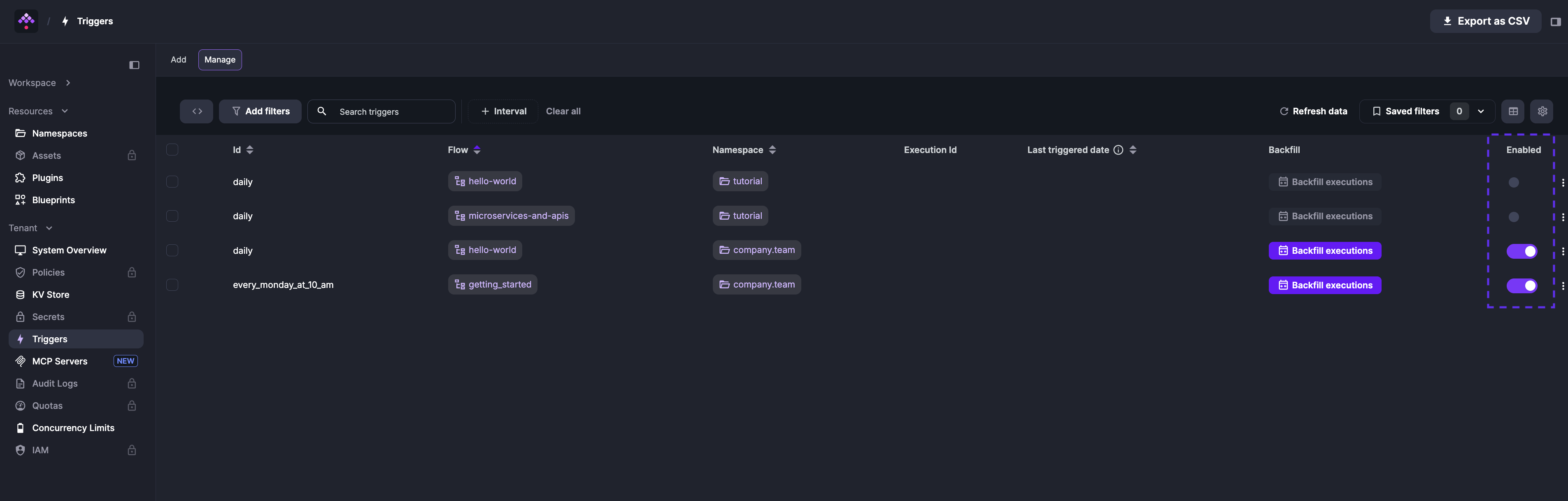
Deleting a trigger is different from deleting a backfill: removing a backfill only cancels pending catch-up runs, while deleting a trigger resets the trigger entity itself. Use Delete backfill to stop scheduled replays and Delete trigger to rebuild the trigger state.
Troubleshooting a trigger from the UI
If you misconfigured a trigger, and as a result, no Executions are created, take the following actions to troubleshoot.
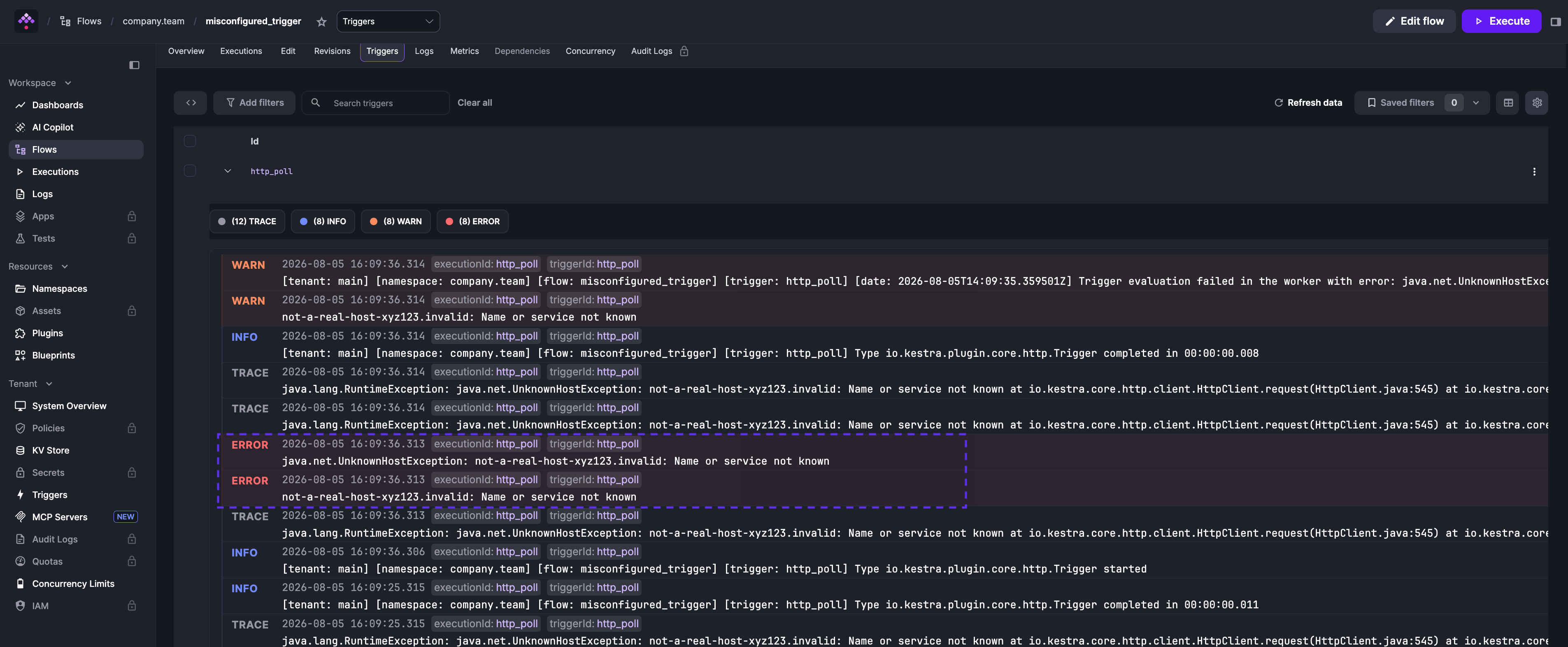
The example flow below illustrates this scenario — the http_poll trigger points to a non-existent host:
id: misconfigured_triggernamespace: company.team
tasks:  - id: log    type: io.kestra.plugin.core.log.Log    message: "{{ trigger.body }}"
triggers:  - id: http_poll    type: io.kestra.plugin.core.http.Trigger    uri: https://not-a-real-host-xyz123.invalid/endpoint    interval: PT10S
When you save the flow, no executions are created. To troubleshoot, go to the Triggers tab on the flow’s page and click the trigger row to expand its logs. A detailed error message identifies the problem:
stopAfter
The stopAfter property is a list of states that disable the trigger after the flow execution reaches one of those states.
This property is most useful with Schedule triggers and polling-based triggers such as HTTP, JDBC, or File Detection.
Kestra does not automatically re-enable a trigger after it has been disabled by stopAfter. You must re-enable it manually once you are ready to resume.
Pause a schedule after failure
This flow runs daily at 9 AM. If it fails, the schedule pauses until you re-enable it manually — preventing repeated failures on a broken pipeline:
id: business_critical_flownamespace: company.team
tasks:    - id: important_task      type: io.kestra.plugin.core.log.Log      message: if this fails, we want to stop the flow from running until we fix it
triggers:    - id: stopAfter      type: io.kestra.plugin.core.trigger.Schedule      cron: "0 9 * * *"      stopAfter:          - FAILED
Disable the HTTP trigger after first success
This flow polls an API every 30 seconds and sends a Slack alert when the price drops below $110. stopAfter: [SUCCESS] disables the trigger after one alert fires, preventing repeated notifications for the same condition.
id: httpnamespace: company.team
tasks:    - id: slack      type: io.kestra.plugin.slack.notifications.SlackIncomingWebhook      url: "{{ secret('SLACK_WEBHOOK') }}"      messageText: "The price is now: {{ json(trigger.body).price }}"
triggers:    - id: http      type: io.kestra.plugin.core.http.Trigger      uri: https://fakestoreapi.com/products/1      responseCondition: "{{ json(response.body).price <= 110 }}"      interval: PT30S      stopAfter:          - SUCCESS
Passing inputs to triggers
Use the inputs property on any trigger to set input values before execution:
In this example, the user input is set to “John Smith” by the schedule trigger:
id: myflownamespace: company.team
inputs:    - id: user      type: STRING      defaults: Rick Astley
tasks:    - id: hello      type: io.kestra.plugin.core.log.Log      message: "Hello {{ inputs.user }}! 🚀"
triggers:    - id: schedule      type: io.kestra.plugin.core.trigger.Schedule      cron: "*/1 * * * *"      inputs:          user: John Smith
Trigger errors
By default, if a trigger fails, no execution is created; this is by design to avoid excessive executions on the instance. To troubleshoot, you must investigate the trigger logs. If you’d prefer an execution to be created on trigger failure, set the failOnTriggerError property to true in the trigger configuration. This will cause the flow to fail and produce an execution with its own logs.
Adding failOnTriggerError: true produces a FAILED execution with full logs instead of a silent no-op:
id: bad_trigger_examplenamespace: company.team
tasks:    - id: hello      type: io.kestra.plugin.core.log.Log      message: Hello World!
triggers:    - id: sqs_trigger      type: io.kestra.plugin.aws.sqs.Trigger      accessKeyId: "nonExistingKey"      secretKeyId: "nonExistingSecret"      region: "us-east-1"      queueUrl: "https://sqs.us-east-1.amazonaws.com/123456789/testQueue"      maxRecords: 10      failOnTriggerError: true
The resulting execution is visible in the UI and can trigger notification flows, in addition to appearing in the trigger logs.
Schedule Trigger
Schedule Kestra workflows with the Schedule Trigger. Learn to use cron expressions, backfills, and conditions to run flows at precise times.
Flow Trigger
Chain workflows in Kestra using the Flow Trigger. Automate dependencies by triggering flows upon the completion, success, or failure of other flows.
Webhook Trigger
Trigger Kestra flows via HTTP with the Webhook Trigger. Learn to start executions from external applications using secure webhook URLs and payloads.
Polling Trigger
Automate workflows based on external state with Polling Triggers. Monitor databases, FTPs, or queues and trigger Kestra flows when changes are detected.
Realtime Trigger
Achieve low-latency automation with Kestra's Realtime Triggers. React instantly to events from Kafka, SQS, MQTT, and other streaming systems.
MCP Tool Trigger
Use the McpToolTrigger to expose Kestra flows as tools on an MCP server. AI agents can discover and invoke them automatically, with inputs and outputs mapped to a JSON schema.
Was this page helpful?