
Query and Manage Neon PostgreSQL from Your Workflows
For the complete documentation index, see llms.txt. For a full content snapshot, see llms-full.txt. Append.mdto anykestra.io/docs/*URL for plain Markdown.
Connect your Neon serverless database to your workflows using the PostgreSQL plugin.
Neon is an open-source database company whose mission is to take everything that developers love about Postgres — reliability, performance, extensibility — and deliver it as a serverless product.
Before you begin, ensure you have a Neon account set up and a Kestra installation running.
Setting up a Database in Neon
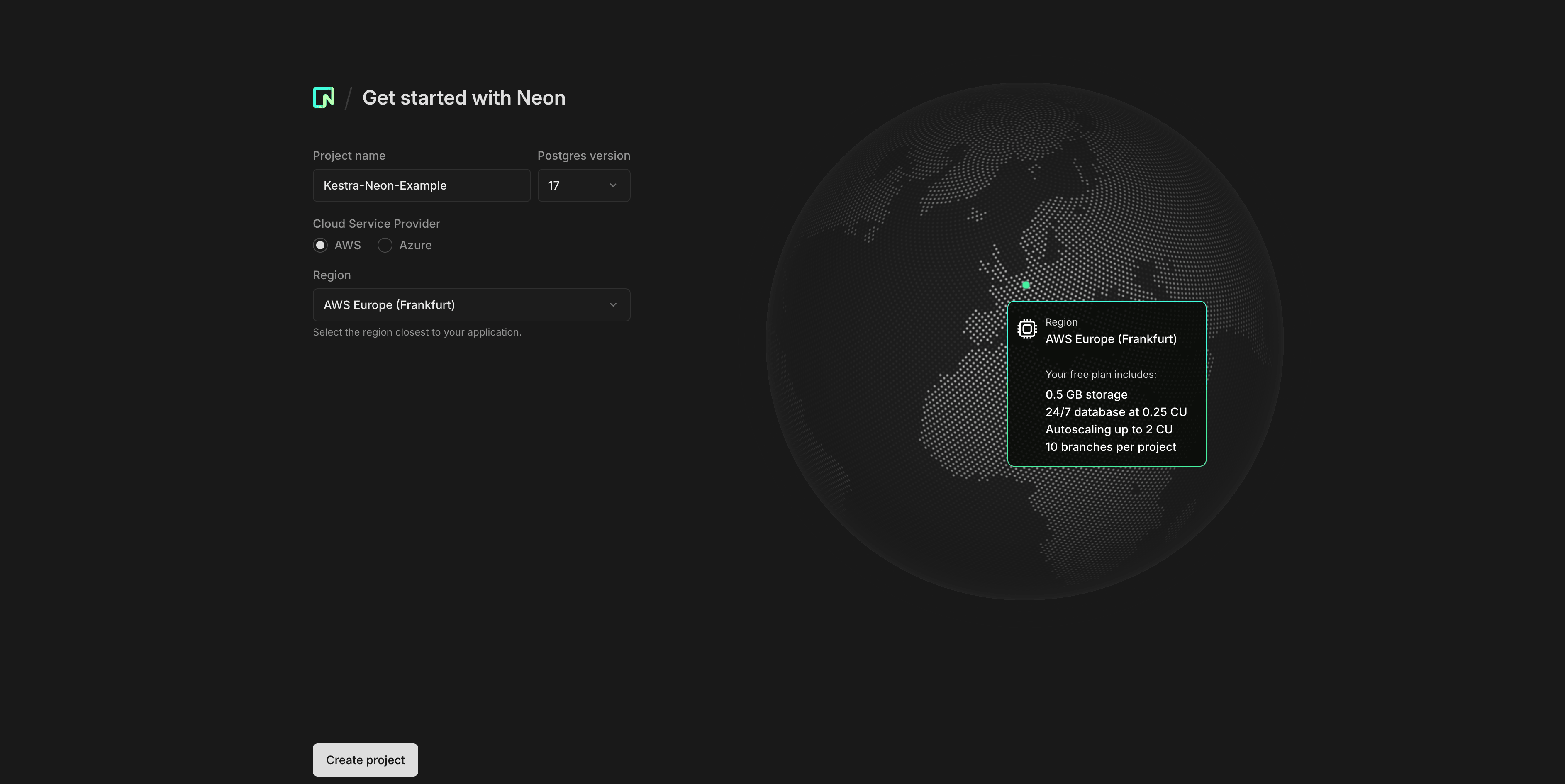
Once you’ve logged into Neon, you’ll need to set up a project where you’ll give it a name, select your desired PostgreSQL version, and select your cloud provider and region.
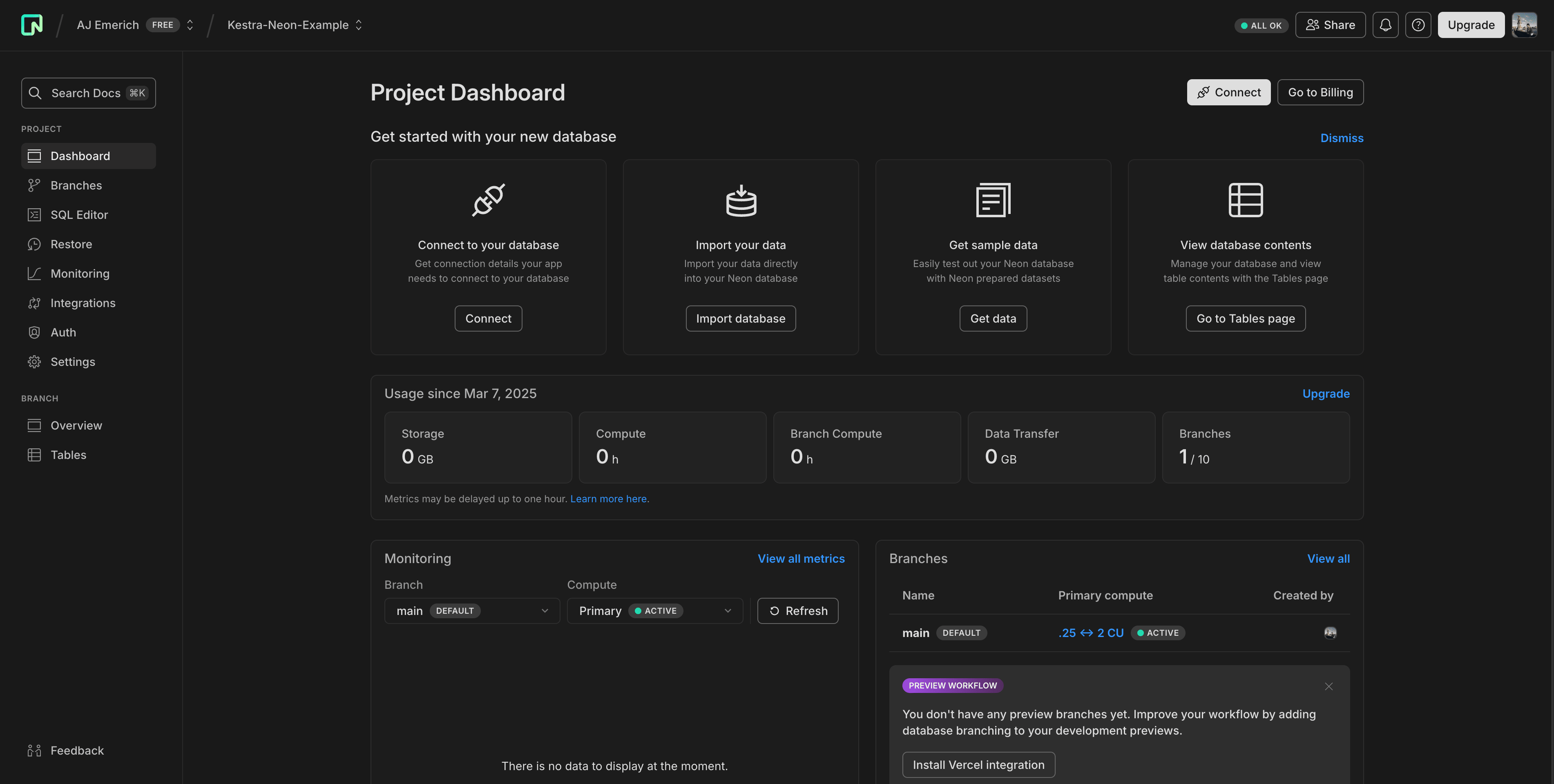
Once your project is created, you’ll arrive at the Project Dashboard page. From here, you can connect to your database, import data, get sample data, view database content, and much more.
Connecting Neon to Kestra
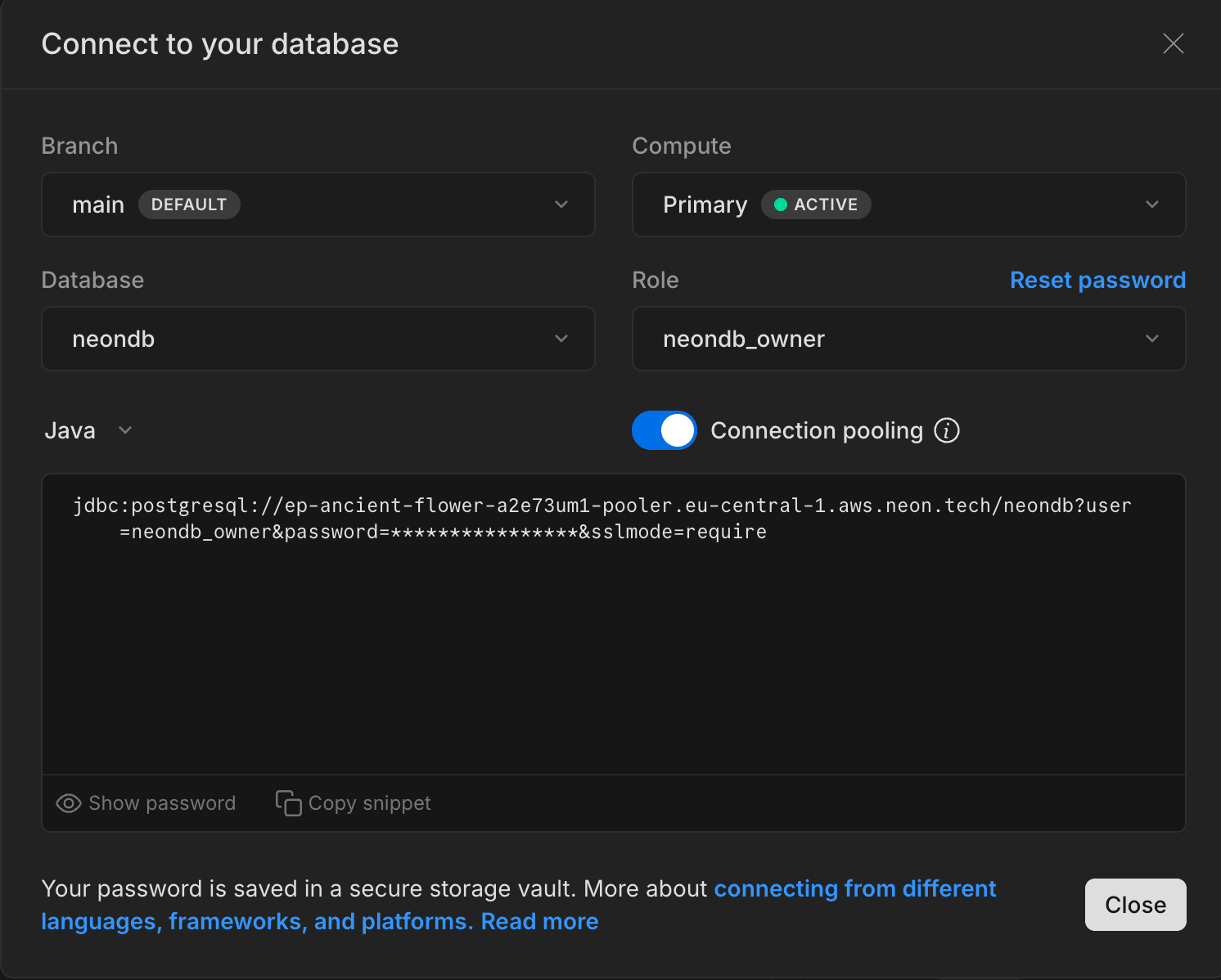
To have Kestra supply the data, connect to your database. Leave the Branch, Compute, Database, and Role as their defaults, or adjust as needed. Click on the Connection string dropdown list and select Java. This is the connection string used in Kestra to connect to the Neon database. Make note of the password and save it for later steps.
With a database set up in Neon, create a table for the incoming data. Click on Tables on the left sidebar.
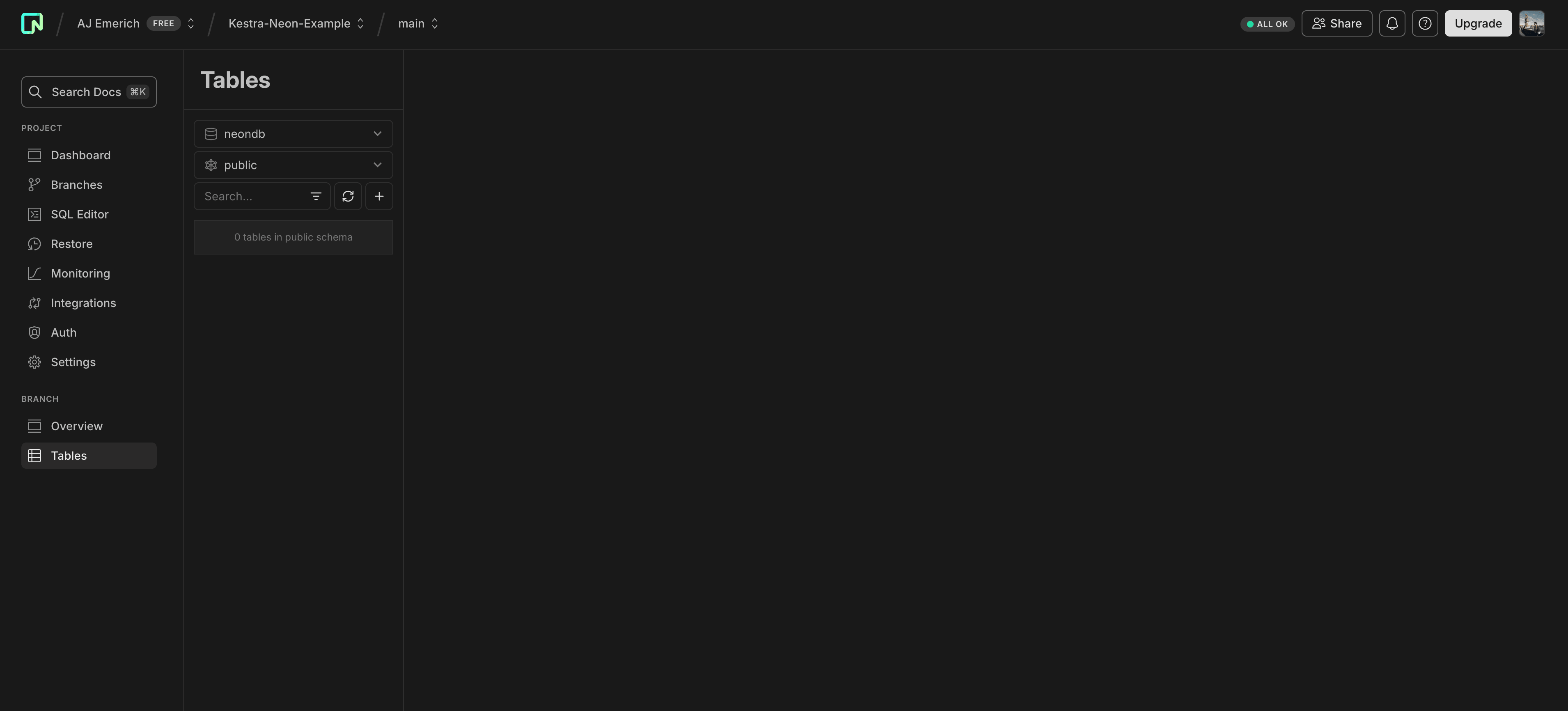
Next, click on the ’+’ icon to add a table, name it, and create it. You can leave just the default id column or add in the columns of your data set now. Kestra will alter the table, so leave it empty for now.
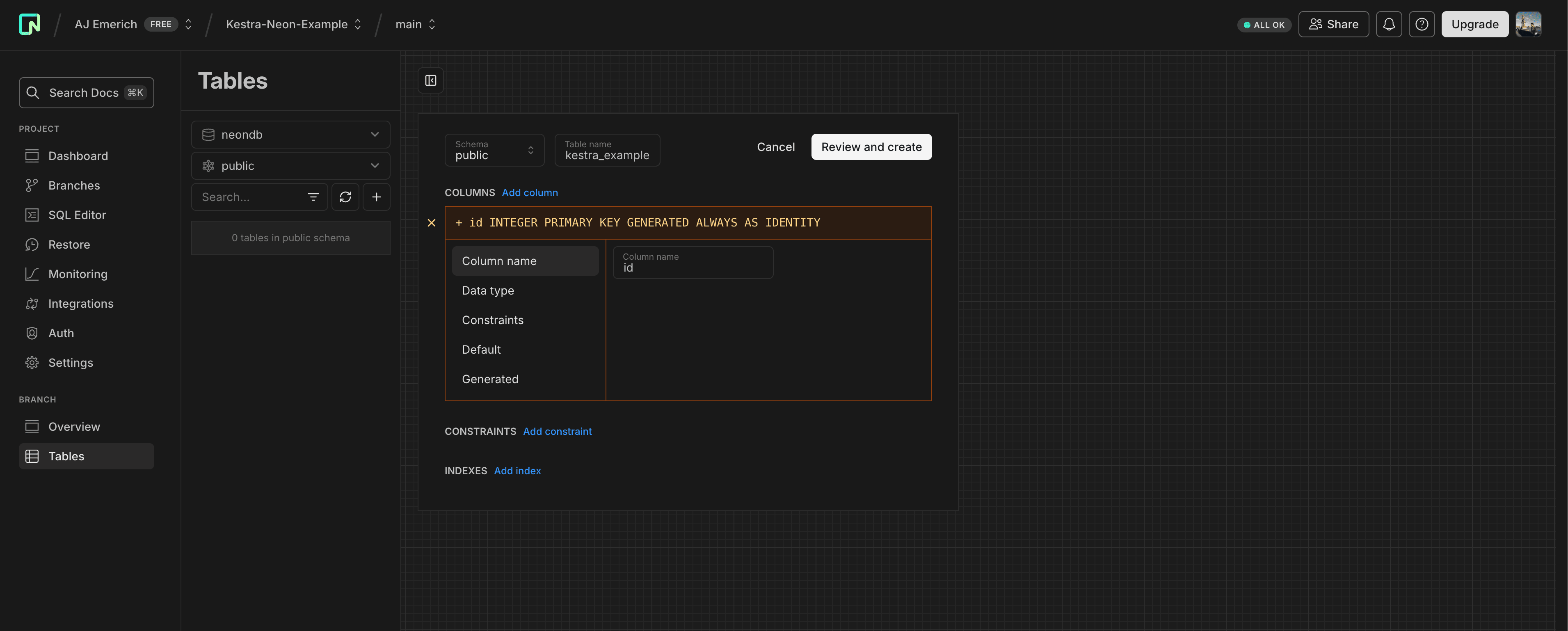
With the setup in Neon done, we can go Kestra to set up our connection. While there’s no official Neon plugin, we can connect using the PostgreSQL plugin, which supports a number of tasks such as Query, CopyIn, and CopyOut.
To connect, copy the URL provided from before. Store the password as a secret and reference it in the URL with {{ secret('NEON_PASSWORD') }}. Add the url property directly to each PostgreSQL task:
url: "jdbc:postgresql://ep-gentle-tree-a25pyhxb-pooler.eu-central-1.aws.neon.tech/neondb?user=neondb_owner&password={{ secret('NEON_PASSWORD') }}&sslmode=require"You can also split the connection string into separate url, username, and password properties:
url: "jdbc:postgresql://ep-gentle-tree-a25pyhxb-pooler.eu-central-1.aws.neon.tech/neondb"username: "neondb_owner"password: "{{ secret('NEON_PASSWORD') }}"In Enterprise Edition, you can centralize connection properties across flows using a Policy with an Add rule targeting io.kestra.plugin.jdbc.postgresql.
Copying a CSV File into Neon in a Flow
Using this example CSV, we can copy the data into our table directly from Kestra. You can either set up the columns directly in Neon in the earlier steps or add a task in Kestra to add them automatically like this:
id: neon_db_add_columnsnamespace: company.team
tasks:  - id: create_columns    type: io.kestra.plugin.jdbc.postgresql.Queries    url: "jdbc:postgresql://ep-gentle-tree-a25pyhxb-pooler.eu-central-1.aws.neon.tech/neondb?user=neondb_owner&password={{ secret('NEON_PASSWORD') }}&sslmode=require"    sql: |      ALTER TABLE kestra_example      ADD COLUMN order_id int,      ADD COLUMN customer_name text,      ADD COLUMN customer_email text,      ADD COLUMN product_id int,      ADD COLUMN price double precision,      ADD COLUMN quantity int,      ADD COLUMN total double precision;
Once your columns are configured, use the CopyIn task combined with the HTTP Download task to download the CSV file and copy it directly into the table.
id: neon_db_copyinnamespace: company.team
tasks:  - id: download    type: io.kestra.plugin.core.http.Download    uri: https://huggingface.co/datasets/kestra/datasets/raw/main/csv/orders.csv
  - id: copy_in    type: io.kestra.plugin.jdbc.postgresql.CopyIn    url: "jdbc:postgresql://ep-gentle-tree-a25pyhxb-pooler.eu-central-1.aws.neon.tech/neondb?user=neondb_owner&password={{ secret('NEON_PASSWORD') }}&sslmode=require"    table: "kestra_example"    from: "{{ outputs.download.uri }}"    header: true    columns: [order_id,customer_name,customer_email,product_id,price,quantity,total]    delimiter: ","
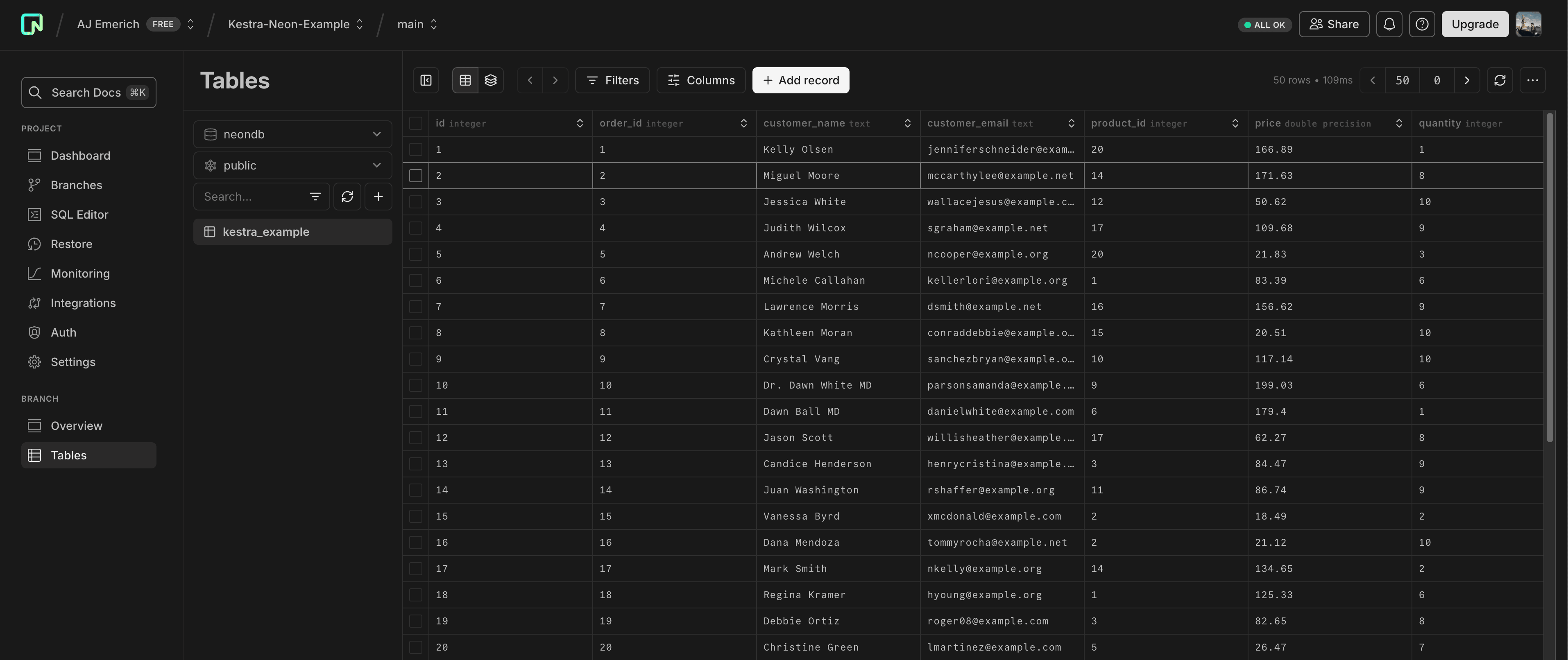
Once this flow completes, we can view the contents of our database in Neon:
Was this page helpful?