
Query and Manage Supabase Data from Your Workflows
For the complete documentation index, see llms.txt. For a full content snapshot, see llms-full.txt. Append.mdto anykestra.io/docs/*URL for plain Markdown.
Use the native Supabase plugin for new integrations. This guide documents the PostgreSQL plugin approach for direct database access.
Supabase is an open-source Backend-as-a-service (BaaS) platform that provides hosted PostgreSQL databases you can query directly from Kestra flows.
Before you begin, ensure you have a Supabase account set up and a Kestra installation running.
Setting up a Database in Supabase
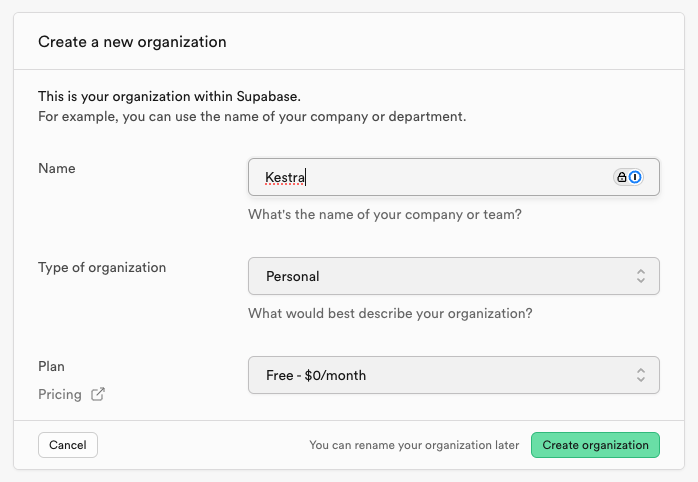
Once you’ve logged into Supabase, you’ll need to set up an organization where you will create projects to access resources such as a database.
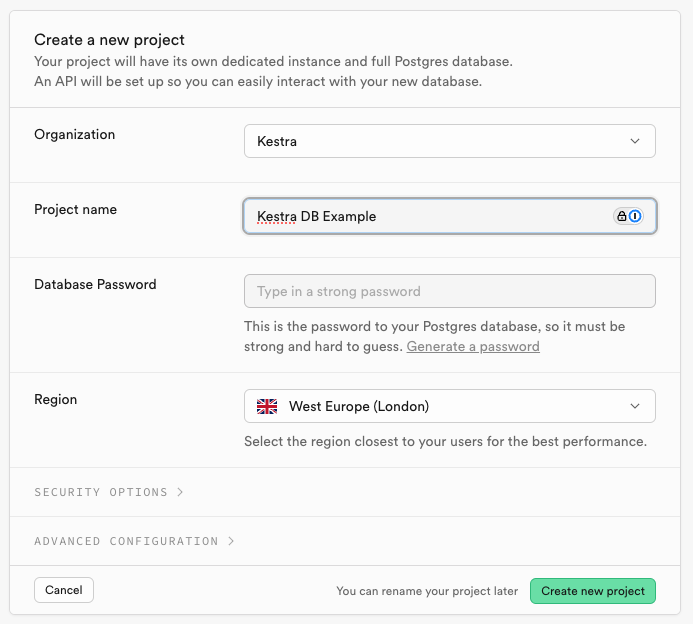
Once your organization is created, you’ll be prompted to create a new project. Set a password for this project to use later for authenticating with the database in Kestra.
Once your project is created, you will now be able to access resources in Supabase. Head to the menu on the left side and select Database. You will be prompted to create a new table in your database, as well as configure any columns you want to use. Leave the columns blank for now and modify them later once you know what data to copy into the database.
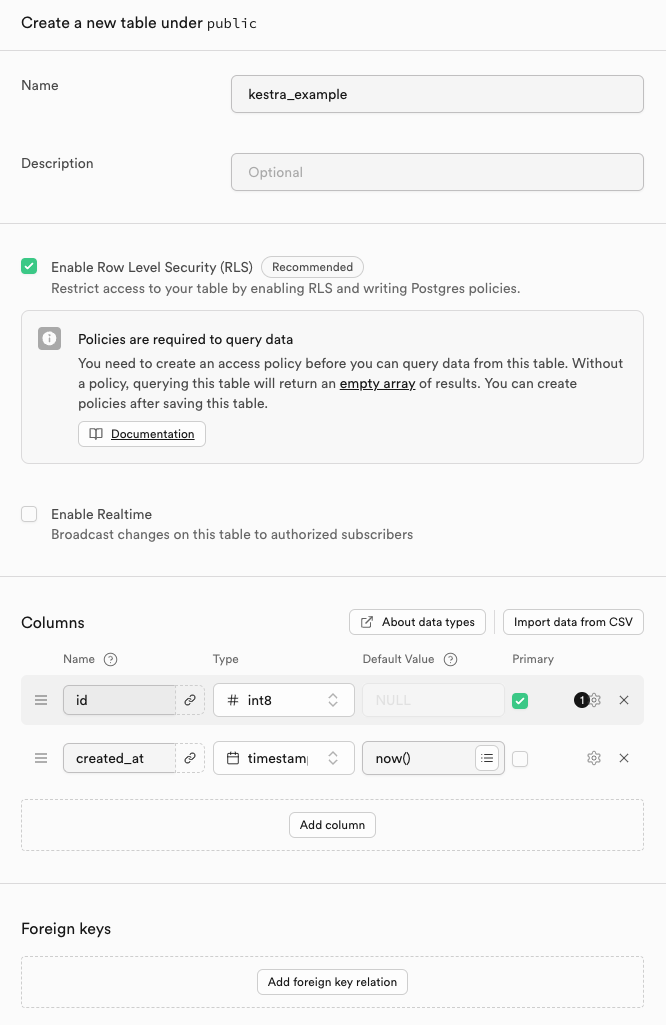
Connecting Supabase to Kestra
Now that we have a database set up in Supabase, we can move into Kestra to set up our connection. While there’s no official Supabase plugin, we can connect using the PostgreSQL plugin, which supports a number of tasks such as Query, CopyIn, and CopyOut.
Inside of Supabase, select the Connect button at the top to get information about our databases connection. Select Type and change this JDBC. This will give us 3 ways of connecting with a Connection String. As we’re only connecting to the database when our workflow runs, the Transaction pooler is a good option to use.
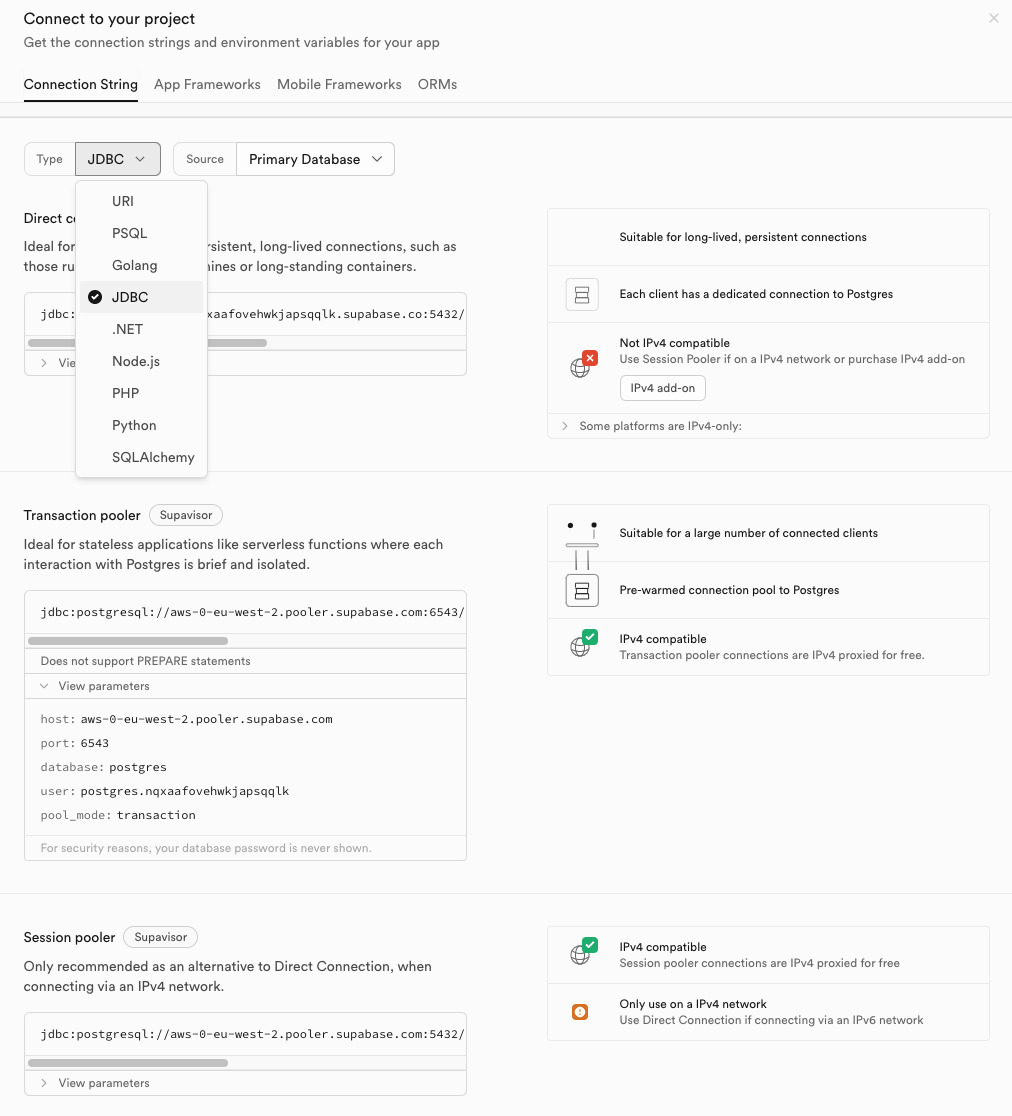
Copy the URL provided for the Transaction pooler and replace [YOUR-PASSWORD] with the password set earlier. Store the password as a secret and add the url property directly to each PostgreSQL task:
url: "jdbc:postgresql://aws-0-eu-west-2.pooler.supabase.com:6543/postgres?user=postgres.nqxaafovehwkjapsqqlk&password={{ secret('SUPABASE_PASSWORD') }}"You can also split the connection string into separate properties:
url: "jdbc:postgresql://aws-0-eu-west-2.pooler.supabase.com:6543/postgres"username: "postgres.nqxaafovehwkjapsqqlk"password: "{{ secret('SUPABASE_PASSWORD') }}"In Enterprise Edition, you can centralize connection properties across flows using a Policy with an Add rule targeting io.kestra.plugin.jdbc.postgresql.
Copying a CSV File into Supabase DB in a Flow
Using this example CSV, we can copy the data into our table directly from Kestra. You can either set up the columns directly in Supabase or add a task in Kestra to add them automatically like this:
id: supabase_db_add_columnsnamespace: company.team
tasks:  - id: create_columns    type: io.kestra.plugin.jdbc.postgresql.Queries    url: "jdbc:postgresql://aws-0-eu-west-2.pooler.supabase.com:6543/postgres?user=postgres.nqxaafovehwkjapsqqlk&password={{ secret('SUPABASE_PASSWORD') }}"    sql: |      ALTER TABLE kestra_example      ADD COLUMN order_id int,      ADD COLUMN customer_name text,      ADD COLUMN customer_email text,      ADD COLUMN product_id int,      ADD COLUMN price double precision,      ADD COLUMN quantity int,      ADD COLUMN total double precision;
Once your columns are configured, use the CopyIn task combined with the HTTP Download task to download the CSV file and copy it directly into the database.
id: supabase_db_copyinnamespace: company.team
tasks:  - id: download    type: io.kestra.plugin.core.http.Download    uri: https://huggingface.co/datasets/kestra/datasets/raw/main/csv/orders.csv
  - id: copy_in    type: io.kestra.plugin.jdbc.postgresql.CopyIn    url: "jdbc:postgresql://aws-0-eu-west-2.pooler.supabase.com:6543/postgres?user=postgres.nqxaafovehwkjapsqqlk&password={{ secret('SUPABASE_PASSWORD') }}"    table: "kestra_example"    from: "{{ outputs.download.uri }}"    header: true    columns: [order_id,customer_name,customer_email,product_id,price,quantity,total]    delimiter: ","
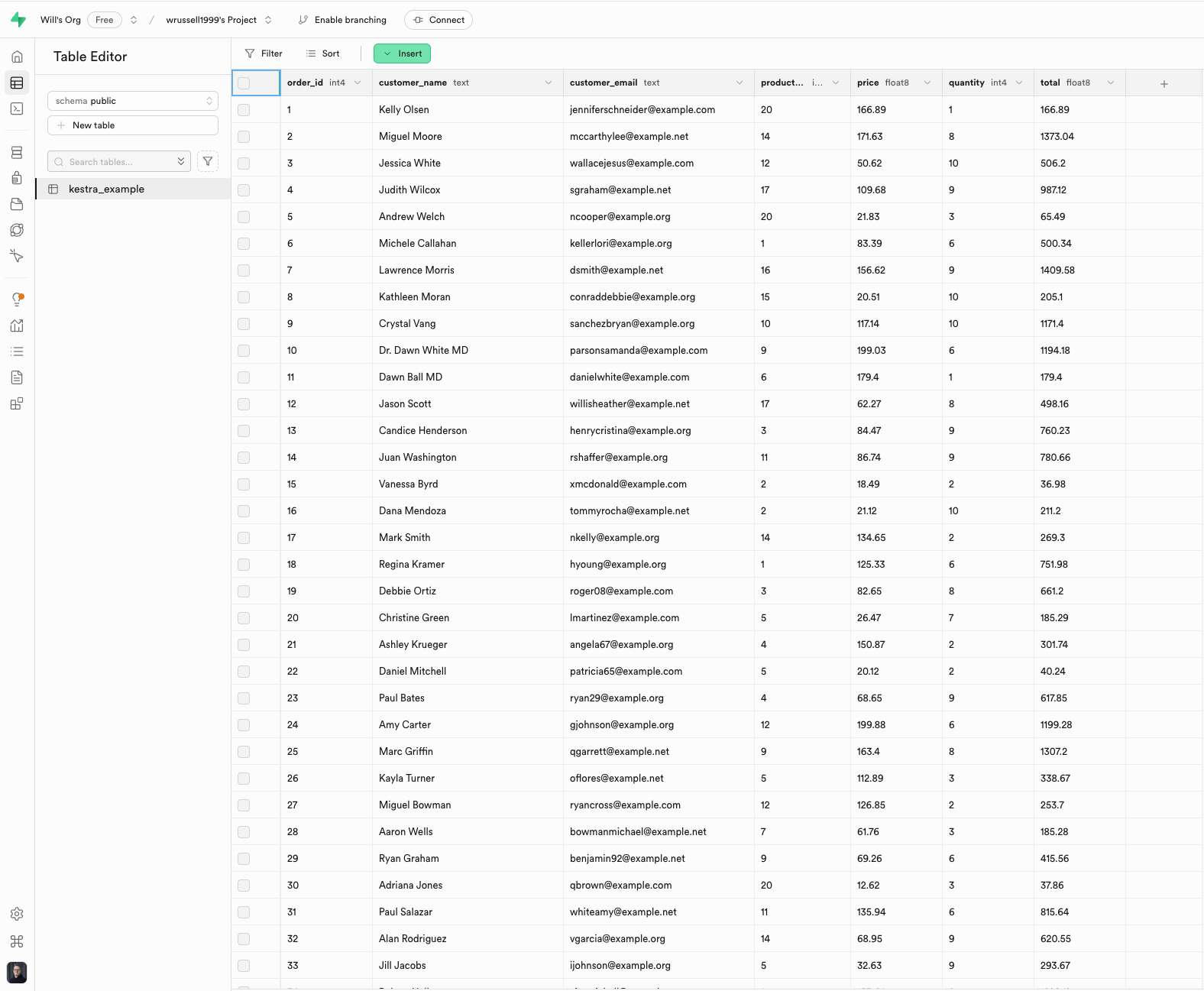
Once this flow completes, we can view the contents of our database in Supabase:
Was this page helpful?